
This is useful when the account holder is not the person handling day-to-day customer issues, and another manager needs to action refunds quickly.
Important: Granting Refund Access allows that user to refund orders associated with the same MOBI Payments (Stripe) account, as long as they also have MOBI Admin access to the relevant store(s).
Before you start
- Only the MOBI Payments Account Holder can assign other users as refunders in Admin.
- The account holder has refund access by default, and it cannot be removed.[
- MOBI staff should only assign refund access after receiving written confirmation from the account holder.[
- If a user has Head Office level access, that can mean refund capability across all stores under that Head Office (depending on how access is set up). This is worth calling out so customers understand the scope of what they are granting.
Best practice: keep the refunder list small, and remove access when staff leave.
Step-by-step: Assign someone as a refunder
If you are granting access to someone who should only refund for one location, double-check their store access and role level (store vs head office) so the permission scope matches what you intend.
-
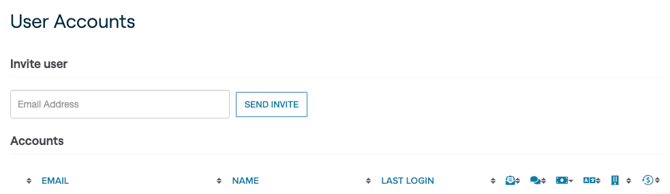
In MOBI Admin, go to Store Settings → Users
-
Identify the MOBI Payments Account Holder
The MOBI symbol indicates who the account holder is.
-
Find the Refund Access column
- Checked = user can refund MOBI Payments orders for this account
- Unchecked = user cannot refund
-
Tick the checkbox to grant Refund Access
- Changes apply immediately.
-
Confirm the user can now see the Refund button on the Sales page and can process full or partial refunds.
If multiple stores share the same Stripe account, the user may be able to refund across those stores too, if they have Admin access there.
Step-by-step: Remove refund access (un-assign)
- Return to Store Settings → Users
- In the Refund Access column, untick the user
- Changes apply immediately.
Review your user list regularly, and remove access when someone changes roles or leaves your business.
Want to learn more or have feedback for us? Say hello!
💬 CHAT: Chat with us online! You can find our ChatBox, 'Dave' in the bottom right-hand corner of our website.
📞 PHONE:
New Zealand: +64 4 831 9400
Australia: +61 3 7037 0866
North America: +1 647 692 2317
🗒️ Form Submission: https://help.mobihq.com/kb-tickets/new
✉️ EMAIL: help@mobihq.com