
For customers to order, you need to make sure that your website it always secure! Before you go live, make sure your website is secure:
https://support.mobi2go.com/hc/en-us/articles/115001159943-Ensuring-your-website-is-secure
🚀 Step 1: Log in to WordPress
Go to your WordPress admin panel:
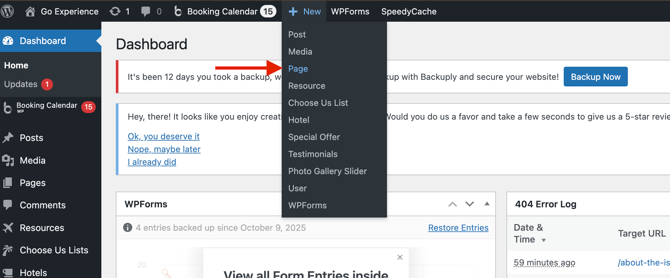
🧩 Step 2: Create a New Page
-
In the WordPress dashboard, go to Pages → Add New.
-
Give it a simple, customer-friendly name like “Order Now”.
-
Choose a short, memorable URL slug (for example, /order), so your link looks like:
This makes it easy to print or share on signage, menus, and QR codes later.
💻 Step 3: Add the Embed Code
-
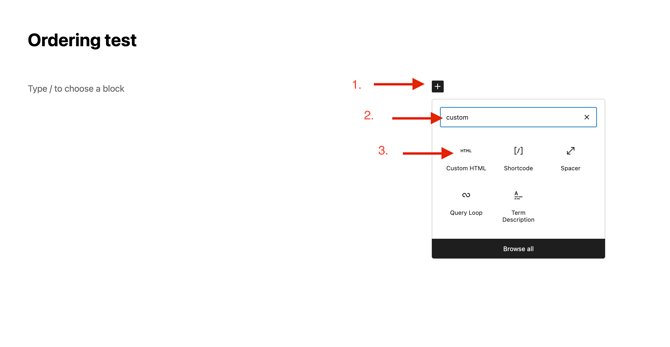
On your new page, click the + Add Block button.
-
Search for Custom HTML and select it.
-
Go to your MOBI dashboard:
-
Scroll to the bottom of the page and copy your full embed code.
It will look something like this:
<script> ... Mobi2Go embed code ... </script>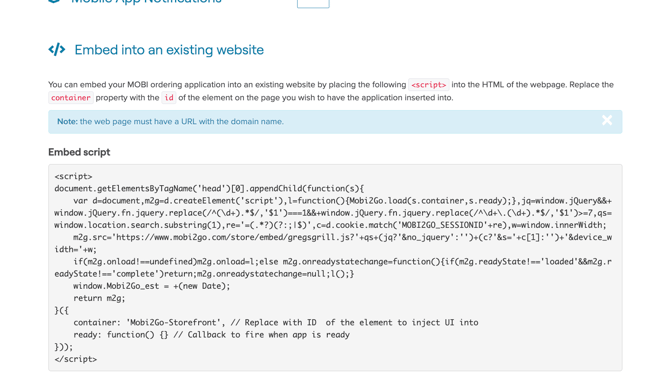
(Don’t worry if it doesn’t render on the page; it’s JavaScript code, not HTML output.)
5. In WordPress, paste your code into the Custom HTML block.
 6. Just above it, add this container div (required for rendering):
<div id="Mobi2Go-Storefront"></div>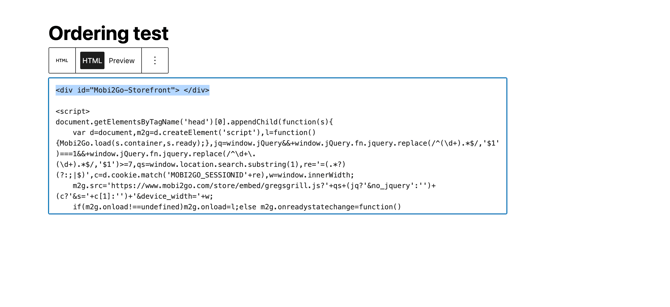
💾 Step 4: Save and Publish
Click Publish or Update, then visit your new page.
You may notice the storefront doesn’t load yet — that’s expected until you whitelist your domain in MOBI.
🌐 Step 5: Whitelist Your Domain in Mobi2Go
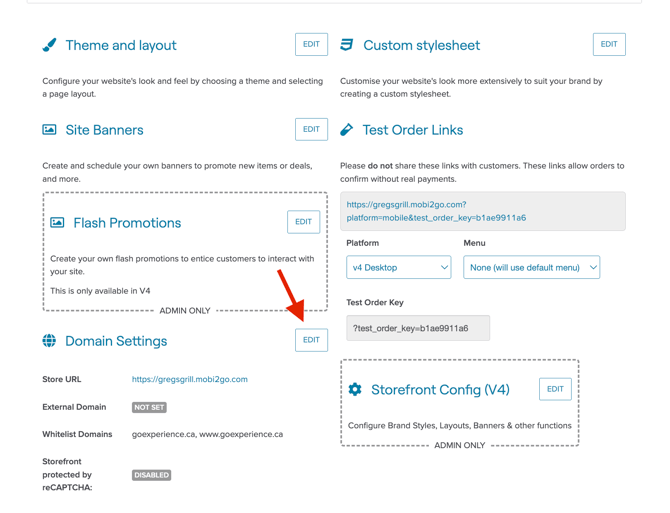

1. Copy your site’s base domain — for example:
-
www.yourdomain.com
2. Go to your Website Settings in Mobi2Go:
👉 https://www.mobi2go.com/admin/headoffice/r/settings/website-settings
3. In the Embed Domains field, paste both versions of your domain, each on its own line:
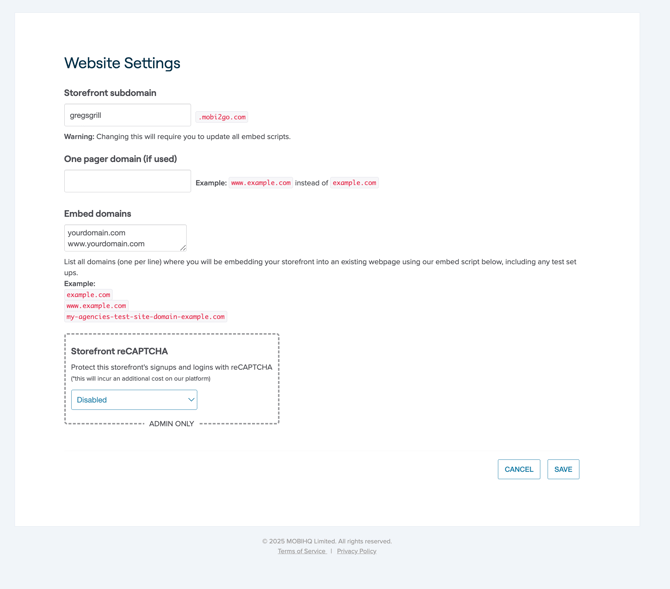
www.yourdomain.com
yourdomain.com
4. Click Save.
✅ Step 6: Test It
Refresh your WordPress “Order Now” page.
You should now see your MOBI storefront load and automatically redirect to the hosted ordering site.
🏁 You’re done!
Your customers can now order directly via your WordPress site at yourdomain.com/order, with a seamless full-screen experience.
PS. Please ensure this page is easily linked to by elsewhere on the website (we recommend a big ORDER NOW button in your top-level navigation or homepage.
Questions & Troubleshooting
If you’re having issues and haven’t been able to resolve them using the Help Center, please contact MOBI’s 24/7 Customer Support Team at help@mobihq.com or through submitting a form HERE