
Before you start
- Make sure you have access to edit menus (often this is controlled at Head Office level for multi-location groups).
- Decide what you need for the holiday period:
- A completely different set of items → create a separate Holiday Menu.
- Only a price change / surcharge → consider using a surcharge feature (if your account uses it) instead of duplicating an entire menu.
Step-by-step: Create and use a Holiday Menu
Create the Holiday Menu
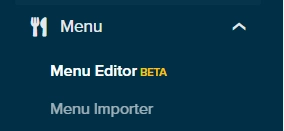
- In MOBI Admin, go to Menu Management/Menu Editor
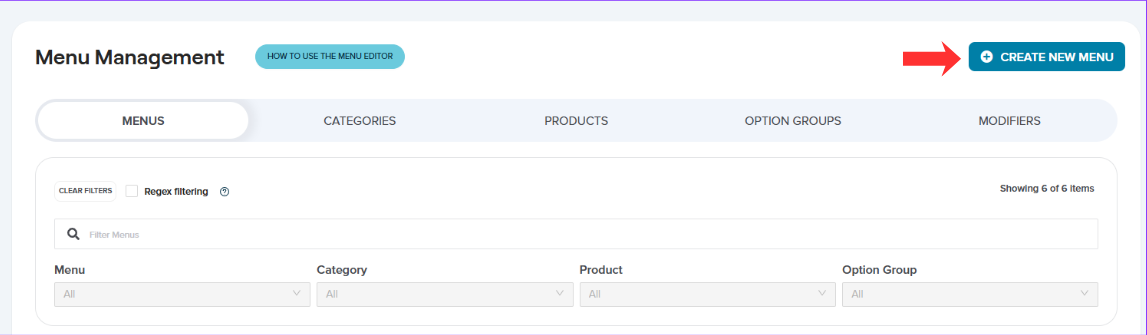
- Create a new menu.
- Suggested naming: “Holiday Menu — <holiday name> <year>” (e.g., “Holiday Menu — Easter 2026”).Create a new menu.
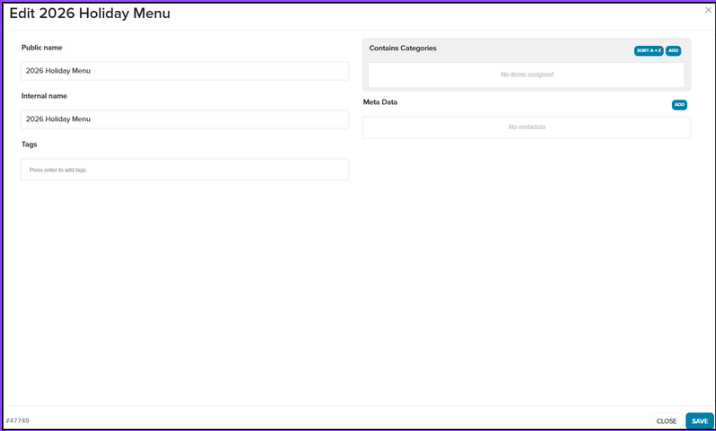
- Suggested naming: “Holiday Menu — <holiday name> <year>” (e.g., “Holiday Menu — Easter 2026”).Create a new menu.
- Add the Categories, Products, Modifier Groups, and Modifiers you want available during the holiday period.
💡 If your Holiday Menu is similar to an existing menu, duplicate/copy your regular menu first (if your setup supports it), then remove items you don’t want and adjust prices as needed.
Assign the Holiday Menu to your store
- Open the store/location you want to update.
- Go to Settings> General Settings
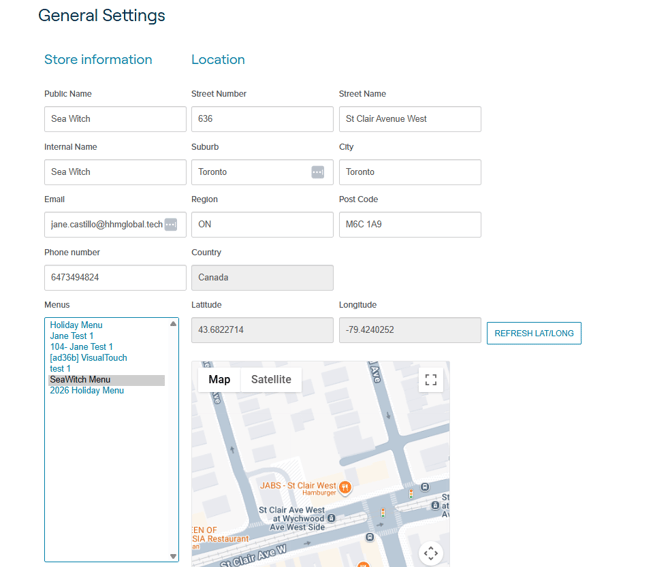
- Find the menu assignment section (where you choose which menus are active/assigned).
- Assign the Holiday Menu.
- Unassign (or disable) any regular menus you do not want customers to see during the holiday period.
- Save your changes.
⚠️ If you leave both the Holiday Menu and your regular menu assigned, customers may see duplicate categories/items or the “wrong” menu.
Verify on the storefront
- Open the ordering website/storefront.
- Refresh the page (or open in an incognito/private window).
- Confirm:
- The Holiday Menu items are visible.
- Items/categories that should be hidden are not showing.
- Pricing is correct.
Switch back after the holiday
- Return to your store’s menu assignment settings.
- Unassign the Holiday Menu.
- Re-assign your regular menu(s).
- Save.
- Verify on the storefront again.
Important highlights (quick checklist)
- Confirm you’re in the correct store/location.
- Ensure the intended menu is assigned and saved.
- Avoid leaving multiple menus assigned unless you intend to.
- Always verify via incognito/private window.
Troubleshooting
“I can’t edit menus” / “Menu editor is missing”
Cause: Your user role may not have menu permissions, or menu changes are controlled at Head Office level.
Fix: Check you’re logged into the correct Store/Head Office account. If needed, ask your Company Administrator to make the change, or contact MOBI Support with your store URL and login email.
“My Holiday Menu isn’t showing”
Cause: The menu may not be assigned to the correct store, another menu may be taking priority, or your browser is showing a cached version.
Fix: Confirm the Holiday Menu is assigned to the correct location and remove any menus that shouldn’t be active. Check the storefront in an incognito/private window. If using a custom domain, also test the default MOBI ordering URL.
“Customers are seeing duplicate categories/items”
Cause: Multiple menus are likely active at the same time.
Fix: Unassign any menus that shouldn’t be visible during the holiday period, then check again in an incognito/private window.
“Prices/items are wrong for one location”
Cause: The wrong store may have been updated, or your group may use location-specific menus.
Fix: Confirm you’re editing the correct location and whether menus are shared or unique per store. Assign the Holiday Menu individually where required.
“I updated the menu, but some changes are missing”
Cause: Items or modifiers may not have been added to the Holiday Menu, or changes were made in another menu.
Fix: Confirm the item is in the Holiday Menu, assigned to the correct category, and has the required modifier groups attached. Save and re-check the storefront.
“The holiday is over — how do I revert?”
Un-assign the Holiday Menu and reassign your regular menu(s), then verify the storefront in an incognito/private window. If you’re unsure which menu was previously active, contact your Company Administrator or MOBI Support.
FAQs
Do I need to create a new menu every time?
Not necessarily. If your holiday offering is similar to your regular menu, duplicate an existing menu (if supported) and update only the items, pricing or availability you need.
Can I schedule a Holiday Menu to turn on automatically?
It depends on your MOBI setup. Availability restrictions or tags may allow you to control when a menu is visible. Otherwise, you’ll need to assign and unassign it manually.
Can I run my Holiday Menu and regular menu at the same time?
Yes, but customers will see items from both menus, which can result in duplicates. Only keep both active if this is intentional.
Why can’t I see a “Holiday Menu” option?
There isn’t a separate Holiday Menu feature—it’s a regular menu created and named for the holiday period. The important step is assigning it to the correct store.
How quickly will changes appear?
Changes are generally close to immediate, but browser caching can delay what you see. Check the storefront in an incognito/private window after saving.
I have multiple locations—do I need to repeat this for each one?
Usually, yes. Even if menu content is shared across your Head Office group, the menu may still need to be assigned to each location individually.
What if I only need to change pricing?
Check whether a holiday surcharge is available in your setup. A separate Holiday Menu is generally better when you need different products, categories or a distinct offering.
Want to learn more or have feedback for us? Say hello!
💬 CHAT: Chat with us online! You can find our ChatBox, 'Dave' in the bottom right-hand corner of our website.
📞 PHONE:
New Zealand: +64 4 831 9400
Australia: +61 3 7037 0866
North America: +1 647 692 2317
🗒️ Form Submission: https://help.mobihq.com/kb-tickets/new
✉️ EMAIL: help@mobihq.com