
The menu management system (or Menu Editor) is your “back-of-house menu builder” in MOBI. It’s where you control what customers can order online by letting you:
- Create and organize categories (e.g., Breakfast, Drinks, Sides)
- Add and edit items/products (name, description, price, images)
- Set up choices and add-ons using modifier groups (e.g., “Choose a size”, “Choose your milk”) and modifiers (e.g., Large +$1, Oat milk +$0.50)
- Build different menus for different needs (e.g., Lunch menu vs Dinner menu, or Storefront vs Aggregators if applicable)
In short: it’s the tool you use to build and maintain your online ordering menu, without needing a developer.
Inactive Product
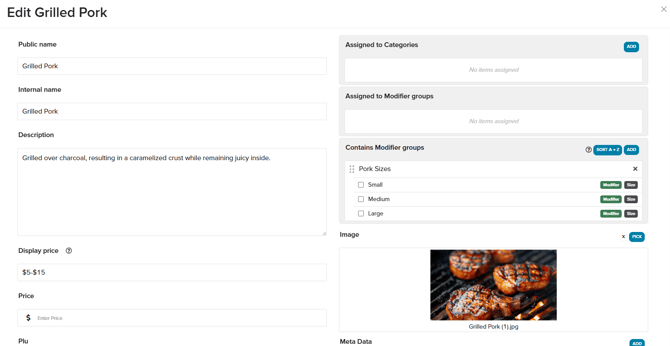
In this screen, “Grilled Pork” is effectively inactive for online ordering, because it isn’t actually placed on the live menu customers browse.
On the right, Assigned to Categories = “No items assigned.” This means customers won’t see “Grilled Pork” anywhere on the menu (because menu pages are built from categories like “Mains”, “Pork”, “BBQ”, etc.).
Right now, this product is like an item sitting in your stockroom: it exists in the system, but it’s not placed on the shelf (category), so customers can’t find or order it online.
Inactive products can also be seen by filtering the Category or Menu section and selecting Unassigned.
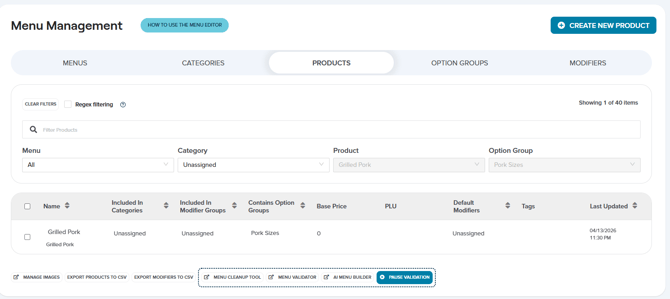
Active Product
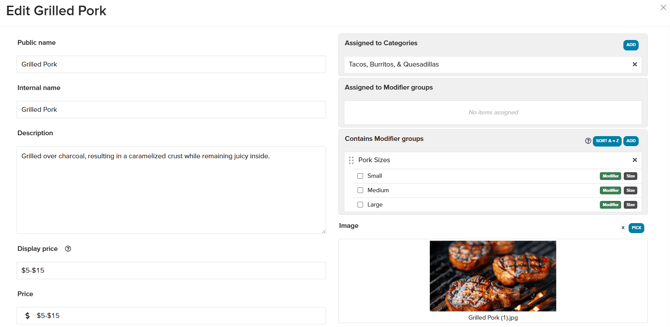
In this screen, “Grilled Pork” is an active, sellable product because it has the key pieces needed to appear online and be ordered:
Under Assigned to Categories, it’s now placed in a Category called “Tacos, Burritos, & Quesadillas.” This is what makes the item show up on your online menu (customers browse categories first, then items).
This product is now “on the shelf” (category) and has pricing + options, so it should appear online and be orderable, as long as the menu containing that category is assigned to the correct location/channel and the category/item isn’t hidden by scheduling or visibility settings.
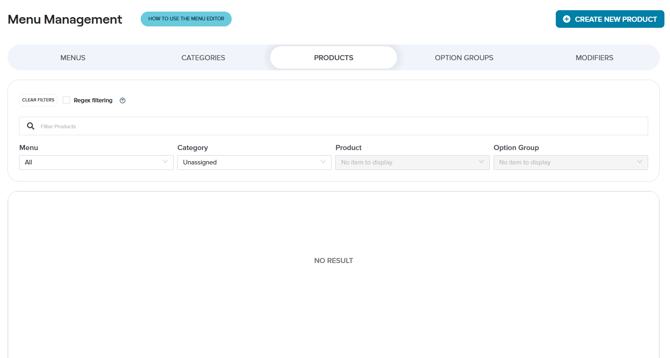
Checking the screen below, you can now tell whether you still have any inactive products or not. You can make sure you have cleaned up your menu structure, and confirm whether an item is properly placed in a category/menu.
Remember
Think of the Menu Editor as a chain. If you want to see if a Product or Modifier is available/displaying online, follow the chain backwards from Modifier > Modifier Group > Product > Category > Menu. If the chain is broken at any of these stages, it will most likely not be displayed online.
Questions & Troubleshooting
If you’re having issues and haven’t been able to resolve them using the Help Center, please contact MOBI’s 24/7 Customer Support Team at help@mobihq.com or through submitting a form HERE