
Before you start (important)
1) Confirm the items exist in PixelPoint
Before importing, make sure the menu items you want online are already set up correctly in PixelPoint, including (where relevant):
Item name
PLU / item code
Pricing
Any modifiers/options
Availability at the correct location
If the items aren’t in PixelPoint yet (or aren’t available at the location you’re importing from), they won’t appear in Mobi during import.
2) Confirm your POS connection is successful
In MOBI, go to your Store Overview page and confirm you have a successful POS connection at the store level.
If the POS connection is not successful, you won’t be able to import items.
Troubleshoot and resolve the POS connection first, then return to this guide.
Step 1 — Import items from PixelPoint into Mobi
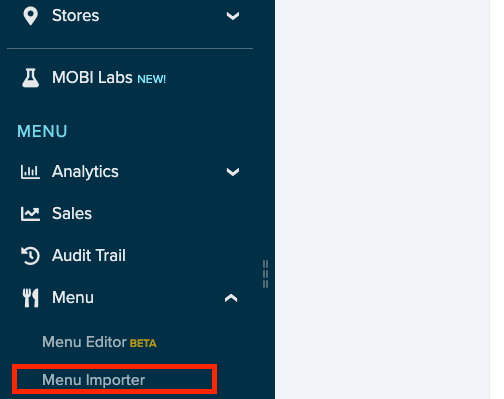
- In MOBI, open the Menu Importer page.
- In the top-right dropdown, select POS.
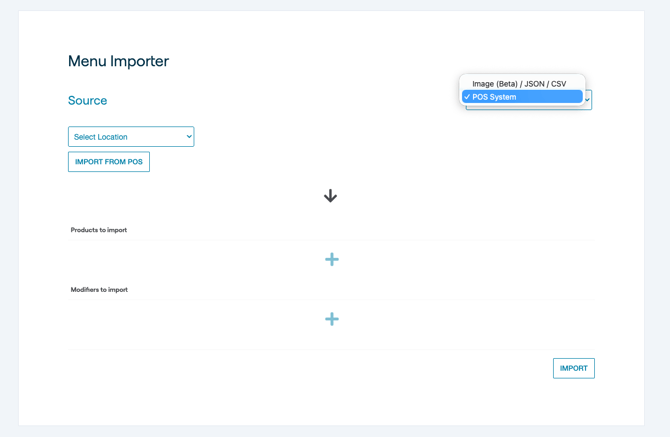
A Location dropdown will appear on the left-hand side. Choose the location you want to import from:
- Single-site: select your one location
- Multi-site: select the specific location you want to import from
(This matters if different locations use different PLUs.)
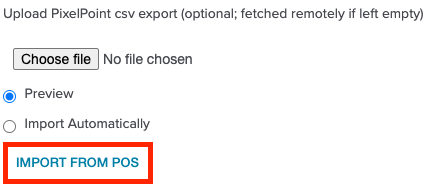
Click Import from POS. (This can take a few minutes depending on menu size.Stay on the page and wait for the preview to load (you’ll know it’s ready when the sections/boxes below populate).
Scroll to the bottom and click Import.
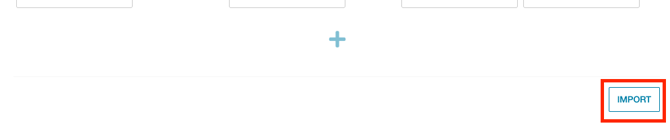
This may take a minute or two depending on menu size.
When complete, you’ll see a green success bar confirming how many items were imported.
Step 2 — Find your newly imported items in the Menu Editor
Imported items are not automatically added to your live menu. After importing:
Go to the Menu Editor.
Use the search bar to find your item by:
Item name, or
PLU / item code
Tip: Newly imported items can usually be identified because the internal name includes an import code. You can update the internal name afterward to match your normal naming conventions.
Step 3 — Make the item customer-ready (recommended)
POS imports often contain “back-of-house” naming or formatting. Before going live, we strongly recommend updating:
Public name
Description
Image
Any other fields needed to ensure the listing is customer-friendly and accurate online
Save your changes once the item is ready.
Step 4 — Add the item to your live menu
Once the item is ready, add it to where it belongs in your menu:
Add a product to a category
-
Open the category you want the item to appear in.
-
Click Add, select the product, and Save.
Add a modifier / option group (if applicable)
If it’s a new modifier, find the relevant modifier group / option group and add it where needed.
If it’s a new option group, locate the products it should apply to and add the group accordingly.
(Exact steps may vary slightly depending on how your menu is structured.)
Step 5 — Test before going live
After adding the item:
Place a test order to confirm:
- The item appears on the storefront as expected
- Modifiers/options behave correctly (if applicable)
- Dispatch the test order and confirm the order details appear correctly in PixelPoint.
Need help?
If you run into issues (missing items, import not completing, POS connection errors, items not appearing online), contact the MOBI Support Team for assistance.