
The Order Manager is in Beta, and is now available for all stores! Please share your feedback via the Feedback button, or help@mobihq.com
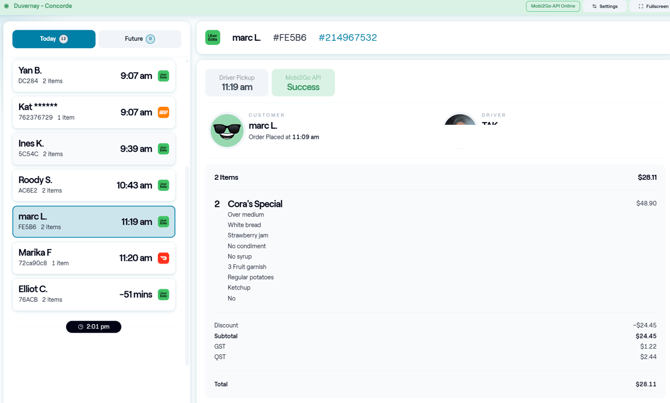
The MOBI Order Manager is a real-time dashboard that gives your team a single place to view and manage orders across all your sales channels, including MOBI Online Ordering and marketplaces.
Designed for busy restaurant teams, it helps you quickly find orders, check their status, and identify any orders that may need your attention.
Why use the Order Manager?
The Order Manager makes it easier to stay on top of incoming orders and investigate any issues that arise.
View all your orders in one place
-
See orders from all supported channels in a single, easy-to-use dashboard, without switching between multiple systems.
Quickly identify orders that need attention
-
If an order doesn't reach your POS, the Order Manager highlights it so you can take action straight away.
Access the information you need
-
View order details, dispatch status, customer information, and other key details from any device, whether you're in the kitchen, at the counter, or on the go.
How it works
Whenever MOBI receives a new order, it appears in the Order Manager.
As the order progresses, the Order Manager updates automatically with the latest information, such as:
- Dispatch status
- Driver assignment (where available)
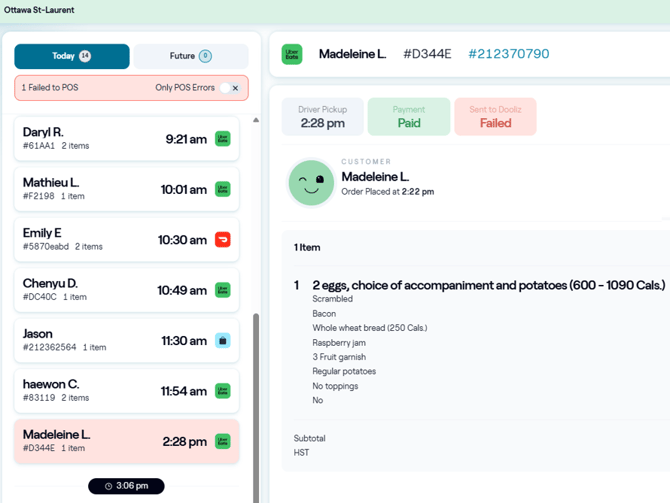
If an order cannot be delivered to your POS after all retry attempts have been exhausted, it will be highlighted in red so your team can investigate and decide what action to take. For example, you may choose to enter the order into your POS manually, prepare the order, or contact the customer if required.
| Order list (Today / Future) on the left | Order detail panel on the right |
|
Order Manager will show, when available:
|
Orders requiring attention
A failed dispatch means MOBI was unable to deliver the order to your store's primary order system, usually your POS.
This does not necessarily mean the order itself has failed. In many cases, the customer is still expecting their order, so your team should review it and decide how to proceed.
Orders with failed POS dispatches are highlighted in red in the order list.
You can also enable the Only POS Errors filter to show only these orders.
Which orders appear in the Order Manager?
The Order Manager is designed to show orders that customers are expecting your venue to fulfil.
For example:
- If a scheduled order has not yet reached its dispatch time, it will appear as Dispatch Pending.
- If dispatch later fails after all retry attempts, the order will be marked as Dispatch Failed and highlighted in red, as the customer is still expecting it.
- If a customer has already been informed that their order was unsuccessful, that order will generally not appear in the Order Manager.
Marketplace orders
Each marketplace provides different information to MOBI, so the information available in the Order Manager may vary depending on where the order originated.
Some orders automatically fall back to the marketplace tablet if they cannot be sent to your POS. In these cases, MOBI may not know whether the order was accepted or declined on the marketplace tablet.
When this happens, the order remains is unlikely to show in the Order Manager.
We're continuing to expand the information shown for marketplace orders as more data becomes available.
If you have any questions about the Order Manager, or need help understanding the information displayed, please contact help@mobihq.com.