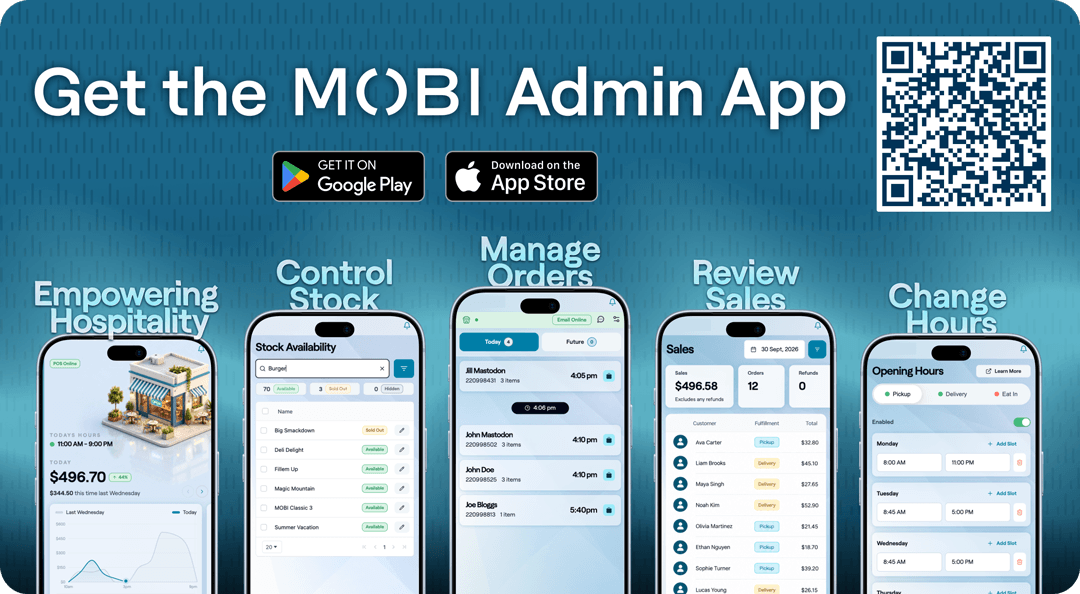
Change a location's trading hours or add a surcharge for specific dates, like public holidays, without changing your normal weekly hours. Schedule changes ahead of time, repeat them every week, and set a surcharge and custom hours for the same day.
What do you want to do?
Do this in the MOBI Admin App
Access Holiday Hours & Surcharges
- Tap More in the navigation bar.
- Tap Holiday Hours & Surcharges in the list. It sits between Opening Hours and Store Status.
Note: Rules apply to one location. Open the page from the location you want to change.
In desktop Admin, go to Operations, then Closures & Holiday Hours. You can also still get here from the bottom of the Opening Hours page, under Holiday hours.
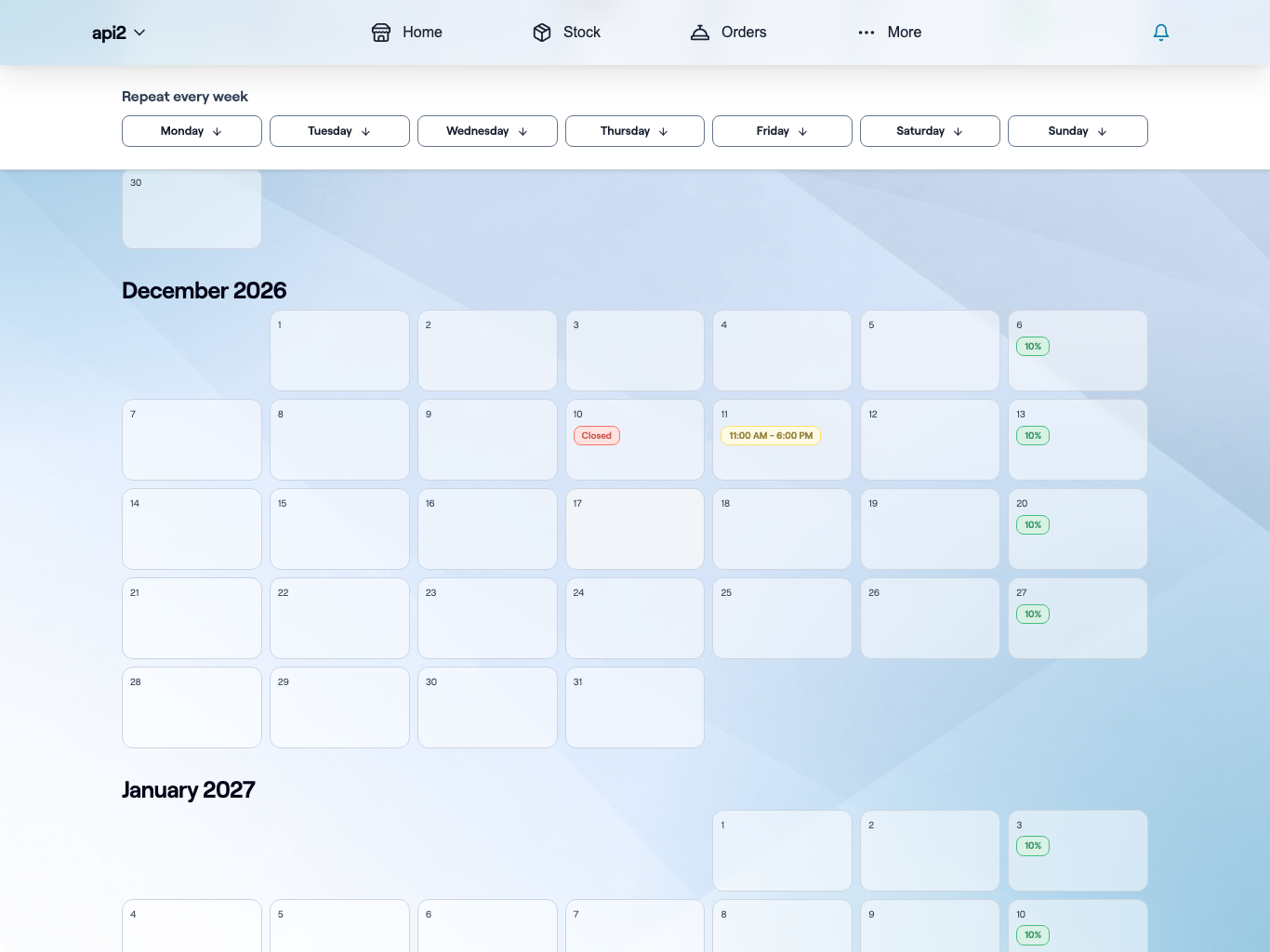
Dates with a rule show a badge: Closed, the opening hours, or the surcharge, such as 10%.
Close a location or change its hours
- Tap a date to select it. Tap it again to deselect it. To pick a run of days, drag across them, or tap the first date and then Shift-click the last date.
- Tap Add rule.
- Optionally enter a Label, for example "Christmas Day".
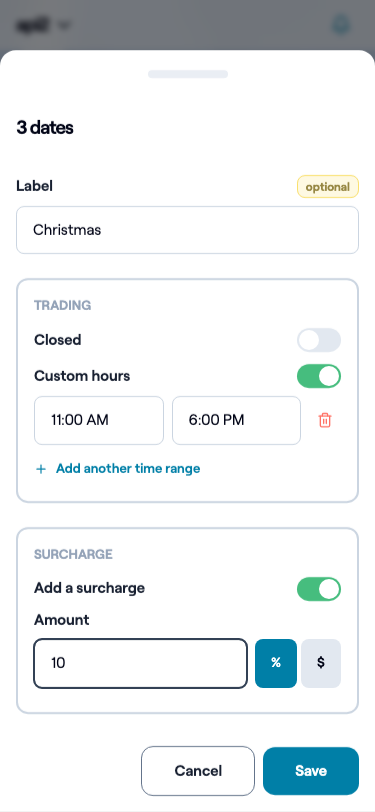
- Under Trading, turn on Closed, or turn on Custom hours and set the opening and closing time.
- To open for two separate periods in one day, tap Add another time range.
- Tap Save.
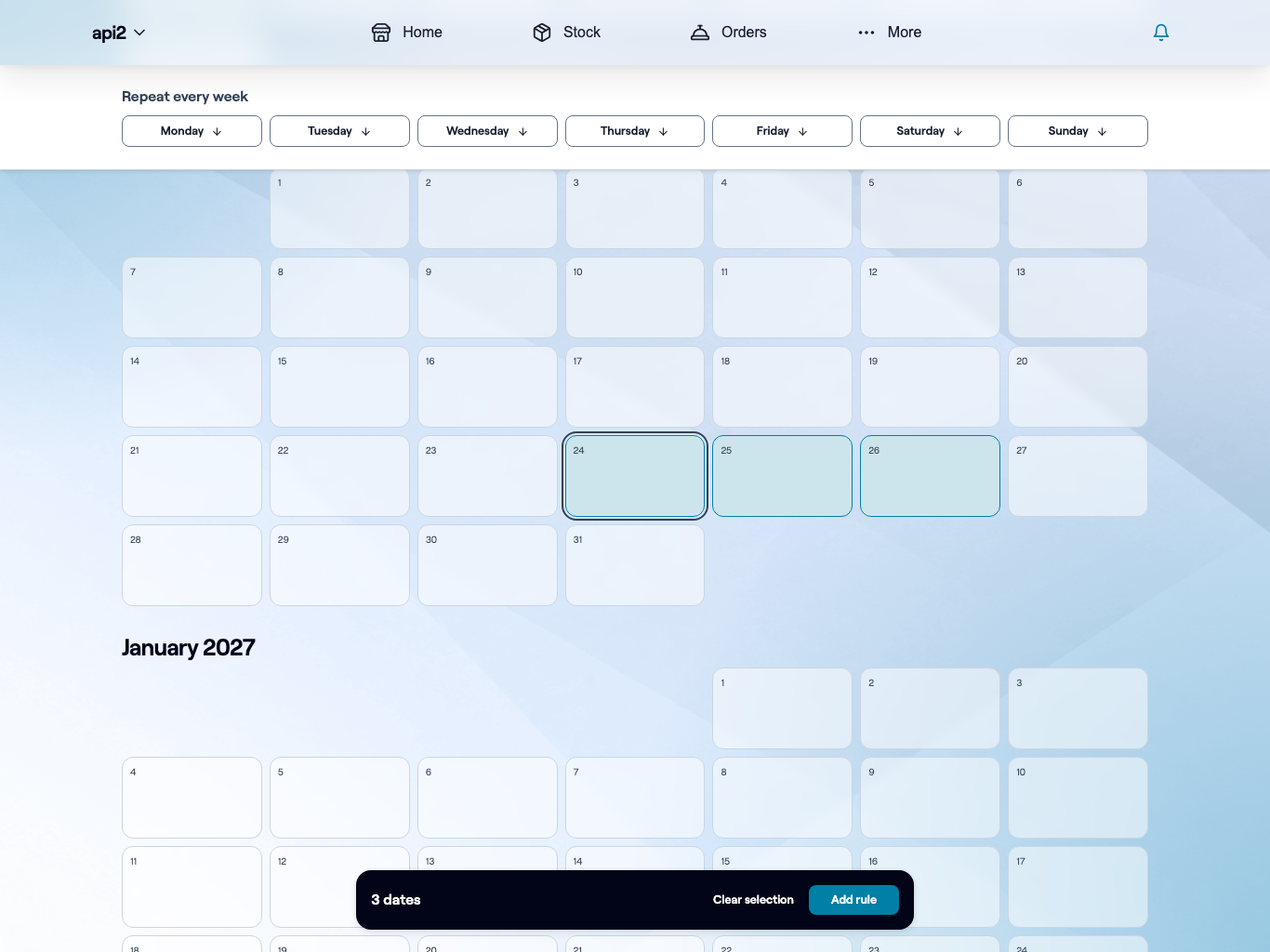
Note: Dates in the past are greyed out and can't be selected.
Consecutive dates are saved as one rule. Dates that aren't next to each other are saved as separate rules with the same settings.
If you don't turn on Closed or Custom hours, trading stays as it is.
Add a surcharge
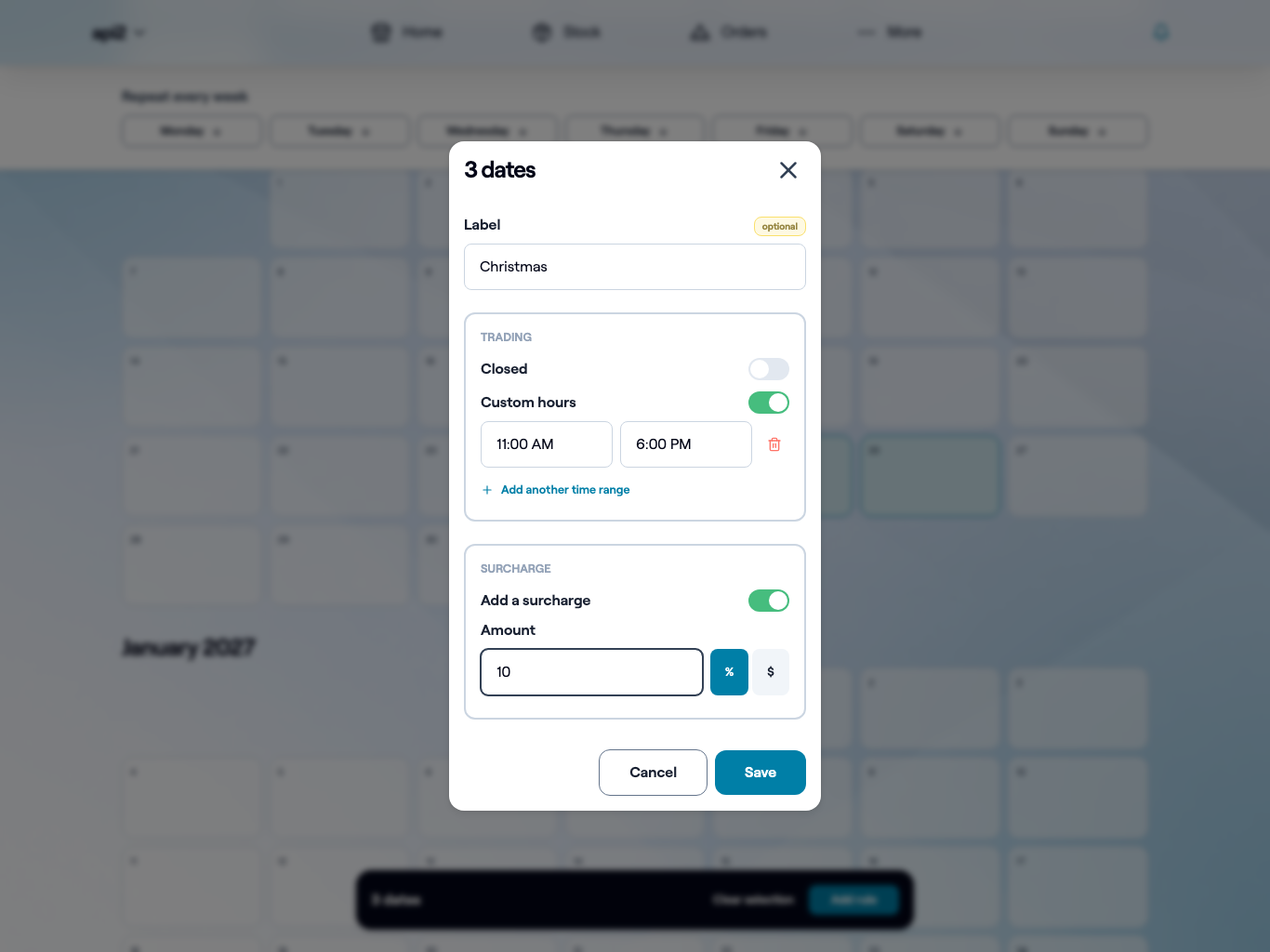
- Select the dates, then tap Add rule.
- Turn on Add a surcharge.
- Choose % for a percentage or $ for a fixed amount, and enter an Amount greater than zero.
- Tap Save.
| In the App | On a phone |
|---|---|
 |
 |
Note: If the location sells through Uber Eats or DoorDash, holiday hours you set here sync to them automatically. DoorDash only receives the first opening time of each day. Other marketplaces don't sync holiday hours, so update those in their own portals. Surcharges aren't supported by any marketplace.
Repeat a change every week
- At the top of the page, tap one or more days under Repeat every week.
- Tap Add rule.
- Turn on Add a surcharge and enter the amount.
- To set a start or end date, open Start and end dates. Starts from is today unless you change it. Leave Ends on blank to repeat with no end date.
- Tap Save.
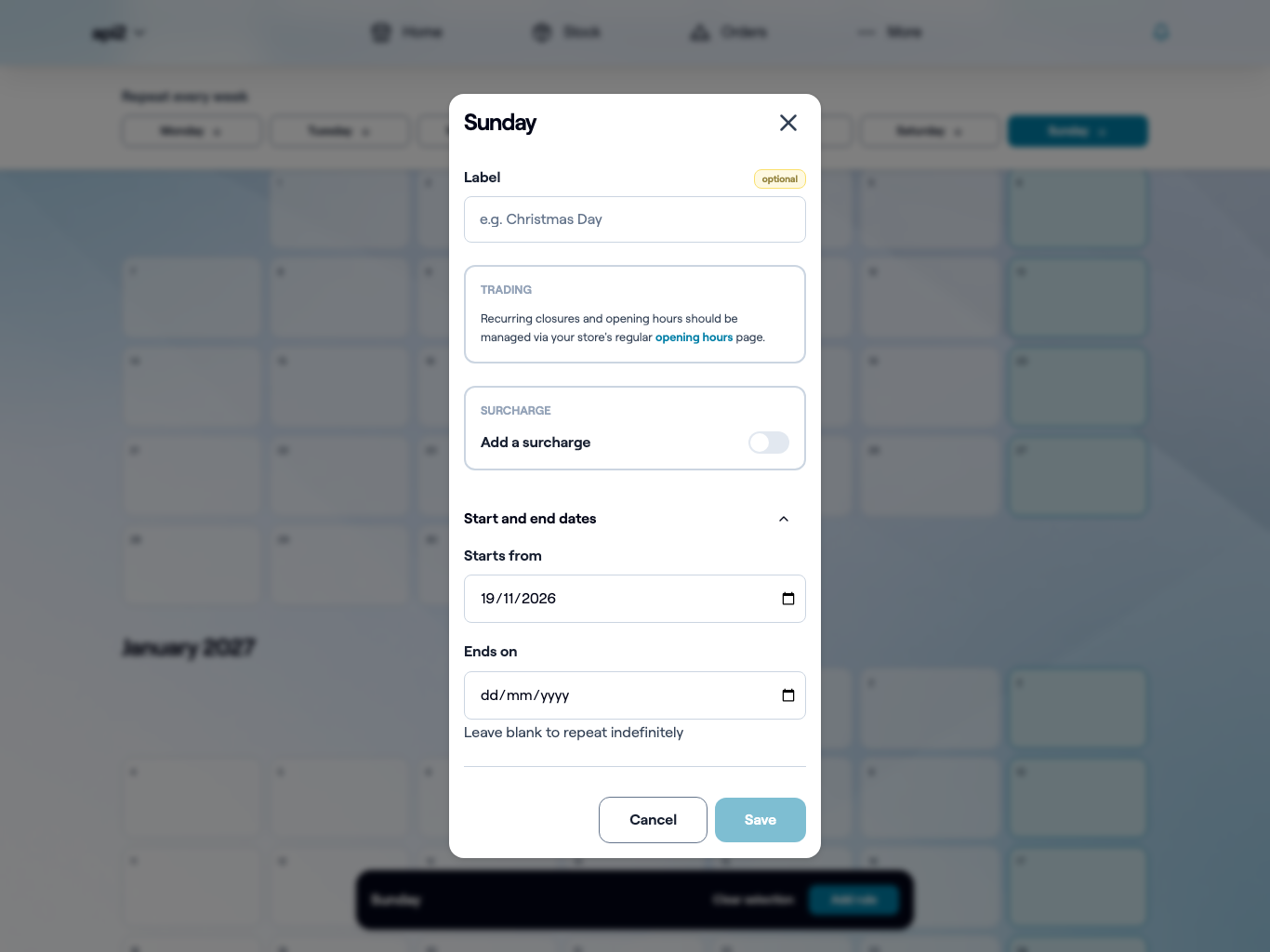
Note: A weekly repeat with no end date can only add a surcharge. To close on the same weekday permanently or change its hours, use your normal Opening Hours page. Give the repeat an Ends on date and it can also close the location or set custom hours.
You can combine weekdays with specific dates in one selection. One save creates a rule for each.
Edit or delete a rule
- Select a date that already has a rule. Tap Edit rule to change it, then Save.
- To remove it, tap the delete button next to the rule in the list, then confirm.
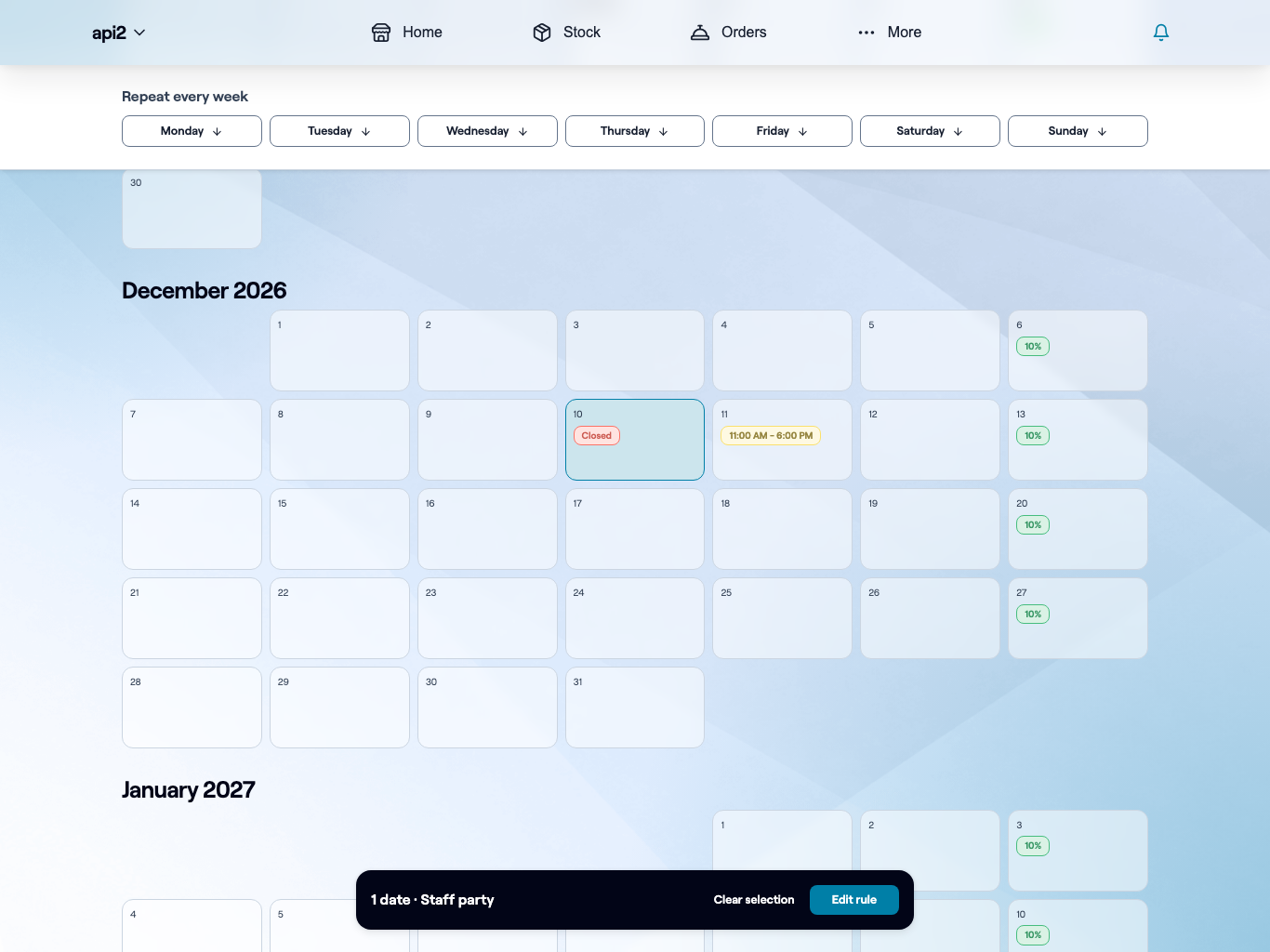
If the date is covered by a weekly repeat, the rule appears in a list with edit and delete buttons.
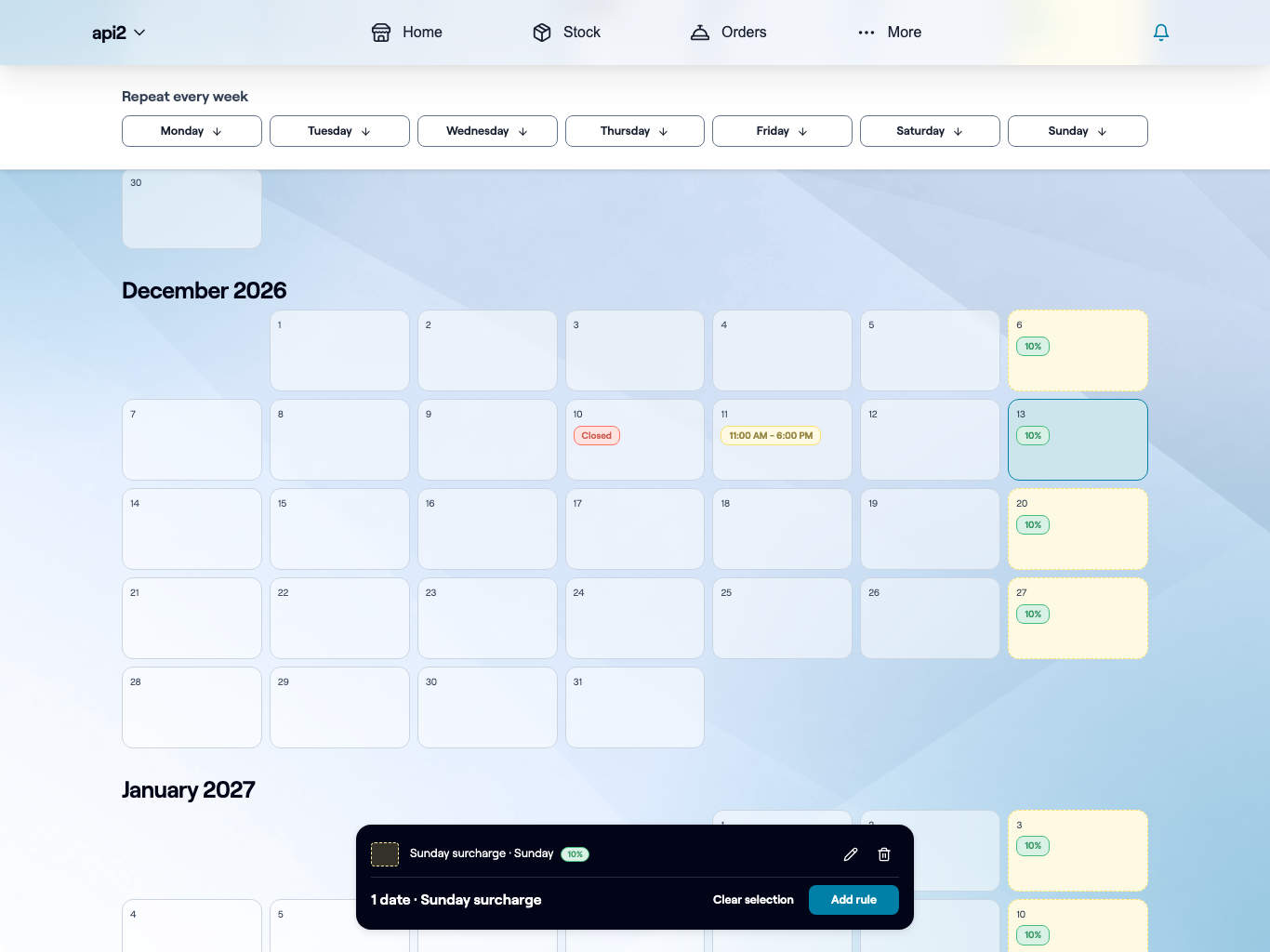
If several selected dates have rules with identical settings, the button reads Edit rules and your change applies to all of them. Turning every setting off removes the rules.
Deleting a weekly repeat removes it for every week.
Remove just the surcharge or just the closure
The most specific rule wins: a single date beats a run of dates, which beats a weekly repeat. Trading and surcharge are decided separately, so a one-off rule only replaces the setting it sets.
Say you've set a 10% surcharge that repeats every Sunday. This year Christmas Day falls on a Sunday, so you add a one-off rule to close for the day. The location closes, but the Sunday surcharge rule still applies underneath it, because trading and surcharges are decided separately. To clear the surcharge too, select Christmas Day, tap Add rule, and turn on No surcharge.
To cancel just one setting on a date, select it, tap Add rule and turn on Normal hours (cancels a closure or custom hours) or No surcharge. These only appear on dates that a broader rule already covers.
Note: You can't add a rule that overlaps an existing rule setting the same thing. Tap Edit that rule, or, for a date range, tap Save just the first date to save that one date and continue.
Things to know
- If a save fails, you'll see a message and can try again. If you're told some changes may not have been saved, check the calendar before retrying.
- If a change saved but the calendar doesn't update, reload the page.
Need help?
Submit a support request: https://help.mobihq.com/kb-tickets/new