
To open the Storefront Designer, go to the Storefront in the left navigation, then click Designer.
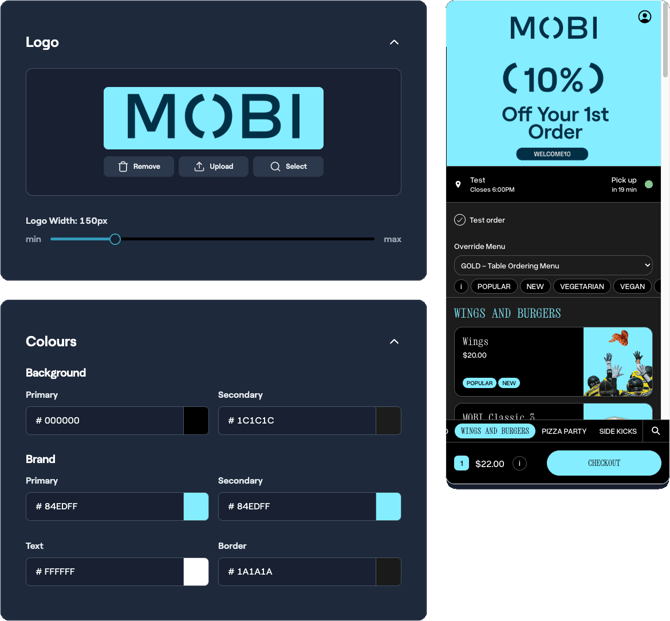
The page is divided into:
- A left-hand column containing collapsible settings sections:
- Logo
- Colours
- Typography
- Settings
- Background Images
- A right-hand live preview panel that updates in real time as you make changes.
Live Preview
The live preview updates immediately as you adjust settings. Changes are not visible to customers until you click Save Storefront at the bottom of the page.
Mobile Preview
On mobile devices:
- Tap Preview Storefront to open the preview.
- Tap Close Preview when finished.
Top Right Actions
- Open Storefront — Opens the live storefront in a new tab.
- Learn More — Opens this help article.
Logo Image
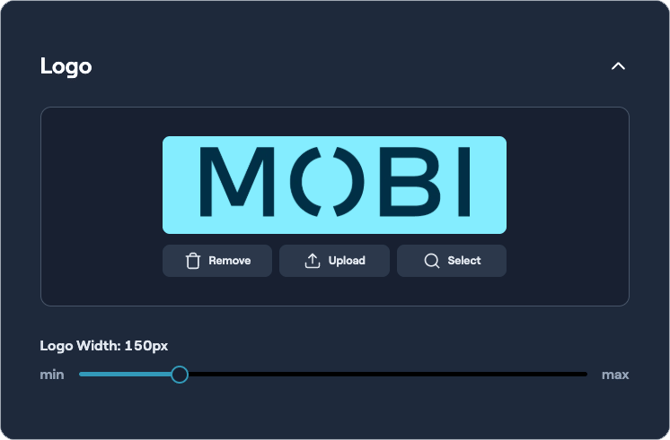
Upload your brand logo using the image selector. You can:
- Upload a new image
- Select an image from the media library
Supported formats:
- JPG
- PNG
Logo Width
Use the slider to resize the logo between 120px and 280px wide.
The logo height automatically scales to prevent distortion.
Colours
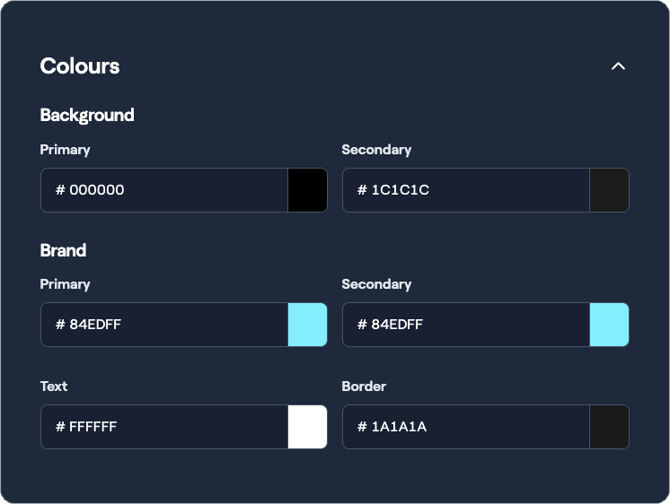
The storefront uses six colour slots to control the overall appearance.
It is recommended to begin with the brand’s primary colour from the logo, then adjust secondary colours as needed.
Many secondary values automatically calculate based on the primary background colour.
Background
Primary
The main storefront background colour.
Default: #ffffff (white)
Setting the background to:
- Pure white (
#ffffff) automatically enables light mode - Pure black (
#000000) automatically enables dark mode
When this happens, the following values also auto-update:
- Secondary Background
- Text Colour
- Border Colour
These values can still be overridden manually afterwards.
Secondary
Used for:
- Accent areas
- Cards
- Secondary surfaces
This colour is automatically derived from the brightness of the primary background.
Recommended Usage
Keep Primary and Secondary backgrounds visually close in tone.
Examples:
- White + light grey
- Black + dark grey
- Light green + dark green
Brand
Primary
The main brand colour used for:
- Buttons
- Key interface elements
Secondary
A complementary brand colour used for:
- Logo backgrounds
- Product image overlays when Colour Images is enabled
Use Secondary Brand sparingly behind logos to maintain readability and contrast.
Text & Border
Text
Primary text colour.
Automatically derived from background brightness:
- Light backgrounds use dark text
- Dark backgrounds use light text
This value can be manually overridden.
Border
Used for:
- Borders
- Dividers
- Separators
Automatically calculated as a blend between the background and text colours.
This value can also be overridden manually.
Typography
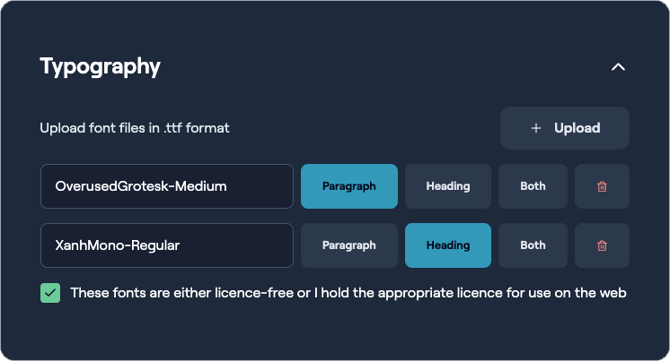
Custom fonts can be uploaded and applied to the storefront.
Supported font format:
.ttfonly
Upload Font
Upload a .ttf file.
The filename (excluding the extension) becomes the font family name.
License Agreement
When custom fonts are uploaded, you must tick the licence agreement checkbox confirming:
- The fonts are licence-free
- Or you hold the appropriate licence
The Save Storefront button remains disabled until this confirmation is completed.
Font Roles
Each uploaded font includes the following role options:
Paragraph
Applies the font to:
- Body text
Heading
Applies the font to:
- Headings
- Bold text
Both
Applies the font to all storefront typography.
Delete
Removes the uploaded font.
If the deleted font was assigned to a role, that role automatically reverts to the system default font.
Sourcing Fonts
Licence-free fonts are commonly available through Google Fonts.
If you are unsure whether a font requires licensing:
- Confirm with the client that the font is free for web use
- Or confirm they hold the appropriate licence
Improper font licensing may have legal consequences.
Important
Do not procure fonts on behalf of the client.
Always ensure the client has the correct licensing rights before use.
Settings
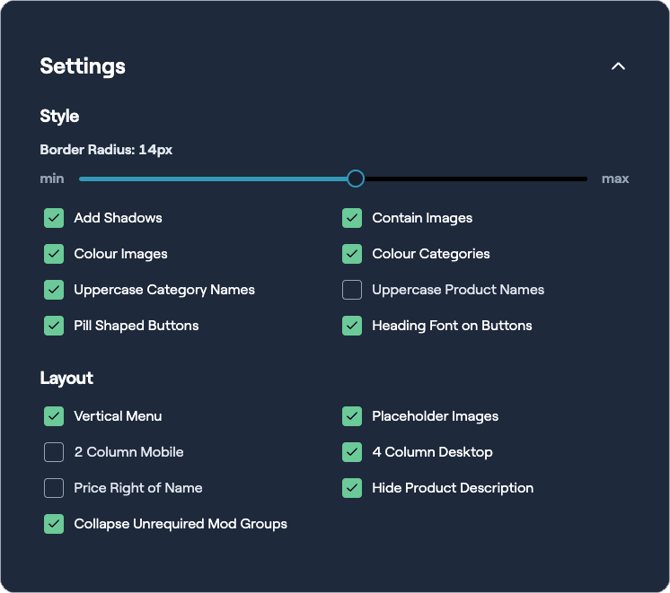
The Settings section contains style and layout controls that determine how storefront components and menus are displayed.
Style Settings
Border Radius
Controls corner roundness for:
- Cards
- Buttons
- Containers
Range:
- 2px to 24px
Add Shadows
Enables drop shadows on cards and containers.
Contain Images
Preserves product image aspect ratio inside the image frame instead of cropping to fill.
Colour Images
Applies a brand-colour overlay to product images using the Secondary Brand colour.
Colour Categories
Applies brand-colour styling to:
- Category labels
- Badges
Uppercase Category Names
Displays category names in uppercase.
Uppercase Product Names
Displays product names in uppercase.
Pill Shaped Buttons
Uses fully rounded pill-style buttons instead of lightly rounded buttons.
Heading Font on Buttons
Uses the heading font for button labels instead of the paragraph font.
Layout Settings
Vertical Menu
Switches the menu layout from horizontal to vertical sidebar navigation.
Typically recommended when:
- Text is displayed on the left
- Images are displayed on the right
Placeholder Images
Displays placeholder images for products without images.
2 Column Mobile
Displays products in a two-column grid on mobile devices.
4 Column Desktop
Displays products in a four-column grid on desktop devices instead of three.
Price Right of Name
Displays product pricing beside the product name instead of below it.
Hide Product Description
Hides product description text from the listing view.
Collapse Unrequired Mod Groups
Automatically collapses optional modifier groups on the product detail page.
Background Images
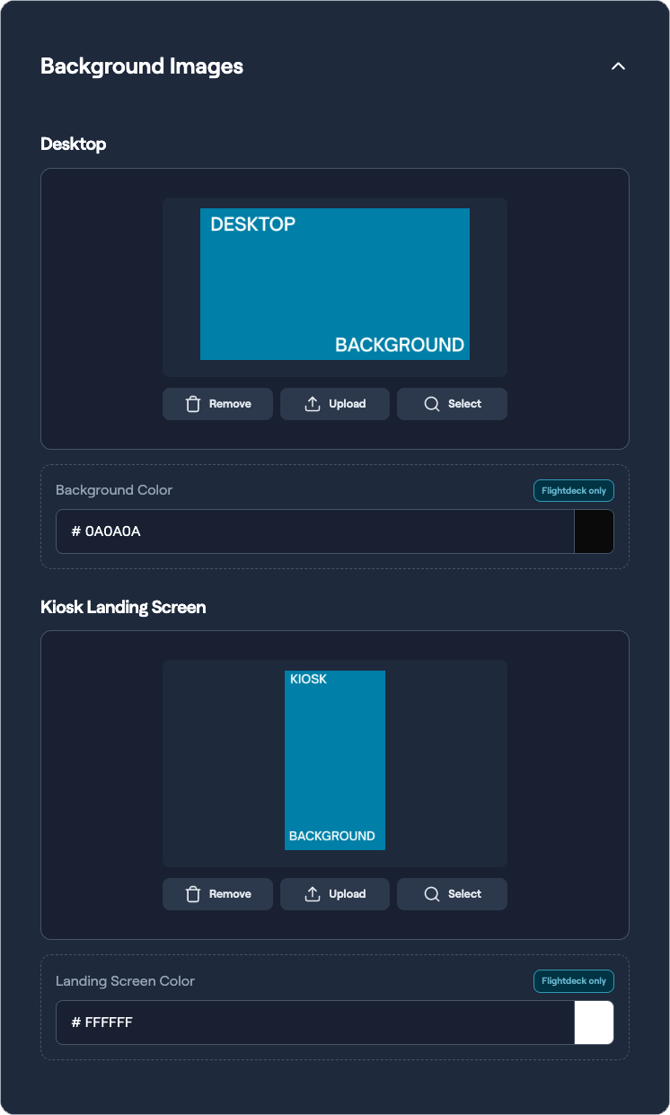
For desktop storefronts and kiosk displays, full-screen background images and fallback colours can be configured.
Desktop Background
Desktop Background Image
Recommended size:
- 1920 × 1080
Used as the storefront desktop background image.
Desktop Background Colour
Used as:
- A fallback colour
- An overlay colour
Available in Flight Deck only.
Kiosk Landing Screen
Kiosk Landing Screen Image
Recommended size:
- 1080 × 1920 (portrait)
Used for kiosk landing screens.
Kiosk Landing Screen Colour
Used as:
- A fallback colour
- An overlay colour
Available in Flight Deck only.
Image Upload Requirements
Images that do not match the required dimensions are automatically rejected.
Saving Changes
Click Save Storefront to apply and publish your changes.
Save Button Behaviour
The button remains disabled until:
- Changes are detected
- Font licensing requirements are confirmed when custom fonts are uploaded
After a successful save, a confirmation message appears.