
Knowing how to send test orders through in MOBI is an important part of successfully managing your online ordering configuration & ensuring your customers receive the experience they deserve.
There may be several scenarios where you need to send test orders, but the most common reasons are:
- Testing new items you have recently added to your menu
- Troubleshooting orders which have failed (Offline, Failed to Dispatch)
- Testing the integration prior to going live
**The below process would only work if you are currently using MOBI payments. If you have another payment provider, you will need to create a 100% discount voucher code so the test order doesn't get charged to the tester. Here's our article on how to create a voucher.**
Prior to sending a Test Order
Run through these checks to ensure your test orders print right away:
- Check your POS connection (If you have integrated MOBI with your POS):
- Click SETTINGS in the grey navigational pane to go to your Store Settings
- In Settings, locate Receiving orders and click EDIT
- Scroll down & click CHECK CONNECTION. The connection between MOBI & POS, needs to be established before your orders will go through to your POS
Sending a Test Order
- Access TEST MODE:
- Reach out to your Implementation consultant or the Support Team for the Test Order Link.
- This link will take you to your online storefront, in Test Mode. In the url, you can see some extra text, which is your custom Test Order Key. This changes every 30 days, so you may need to request a new link.
- Tick the 'Test Order' box
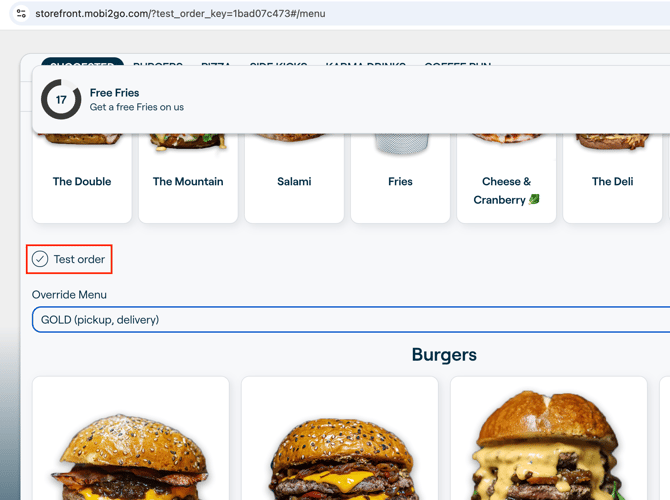
- At this point, you can also select which menu to test.
- Create your order:
- On the storefront, create an account as if you were a customer. If you already have an account, you will just need to log in.
- Proceed to add products to your order
- Once you have finished click Next Step to process and confirm the order
-
Simulated Payment & Confirmation
- A prompt will appear - select your payment method
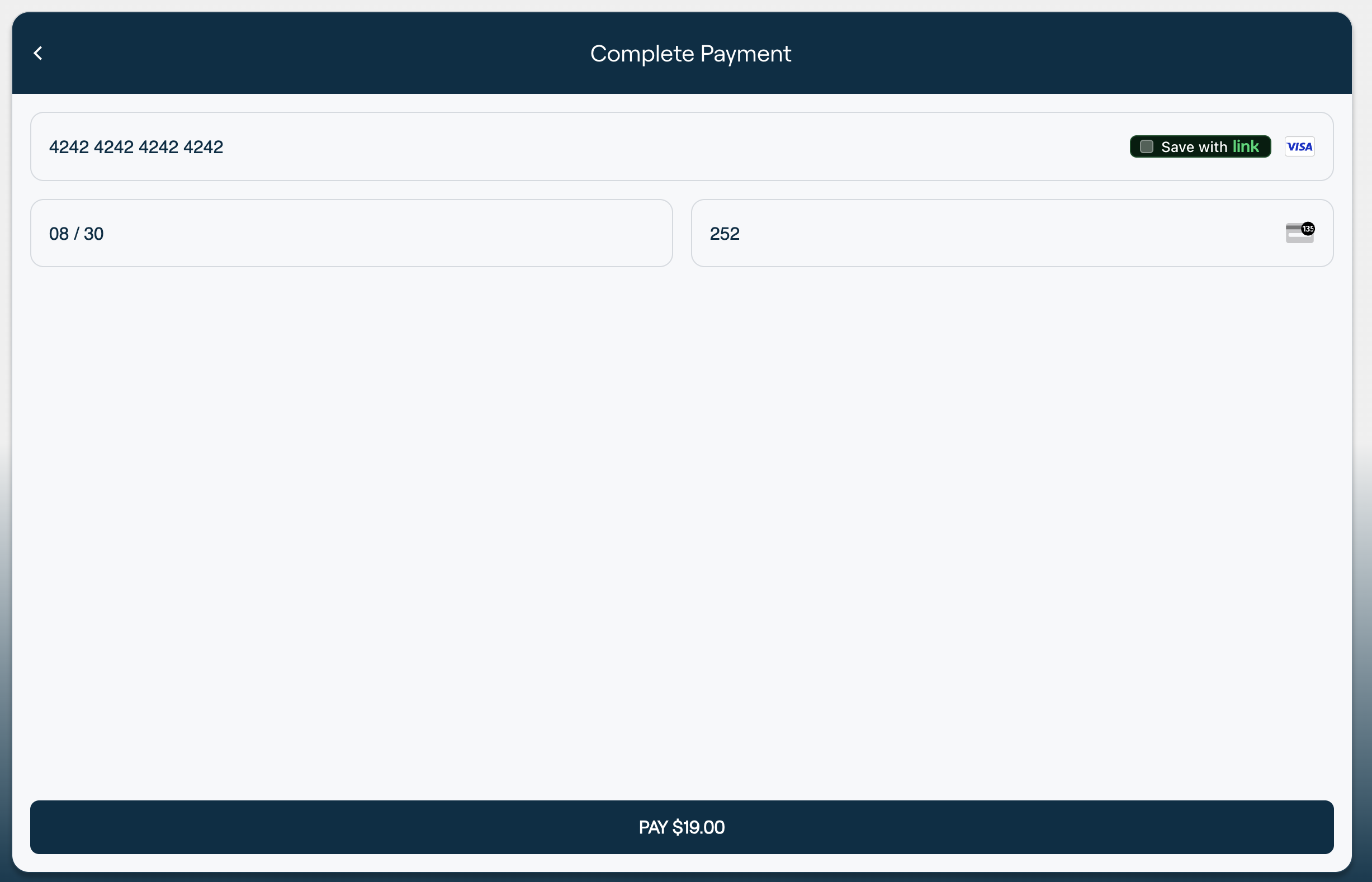
- You can simulate a credit card payment by using the following credit card details (The expiry can be any date in the future, and the CVV can be any 3 numbers - the Card number needs to be 4242 4242 4242 4242)
- The order should process successfully, and a confirmation email should be sent to the email address that the account was attached to
- While these orders are considered to be tests in MOBI, they will appear as real orders in your POS so make any adjustments to remove or reverse orders for accurate reporting.
- If the order was not successful, please refer to this article to troubleshoot the order.