
Part 2: Understand the default delivery behaviour
When you connect Uber Direct using the self-serve flow, the maximum delivery radius is automatically applied so you can start delivering quickly.
By default:
- Your delivery radius is set to Uber Direct’s maximum for your region
- NZ & Australia: 10 km
- Canada: 15 km
- USA: 10 miles
- Delivery fees are calculated by Uber Direct
- No minimum order total is enforced
- No custom maximum order total is enforced (Uber Direct’s country defaults apply)
- No proof-of-delivery requirement is enforced
- No undeliverable action is enforced
If you’d like a different delivery experience (for example: subsidised delivery fees, specific service zones, or PIN/photo verification), you can customise your settings, see below.
Part 3: Edit your Uber Direct delivery settings
Where to edit settings
Open your Uber Direct settings page:
https://www.mobi2go.com/admin/store/[store_id]/settings/uber-direct-settings
Common settings you may want to change:
1) Order minimum and maximum
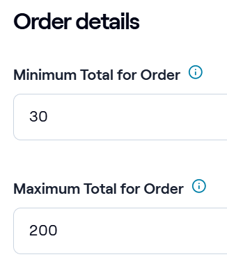
If you want to set a minimum order total or maximum order total for delivery orders, you can do that here. Customers will be prevented from ordering delivery via the MOBI storefront if these criteria are not met.
2) What customers pay (delivery fees)
By default, customers will pay the full delivery fee as calculated by Uber Direct.
You have additional options for controlling the delivery fee:
1. Delivery fee override - this is a subsidised fee. If this is set, customers will pay this amount for delivery.
Leave this fee blank
Note that this means your business will pay the difference between this amount, and the delivery fee calculated by Uber Direct, for each order.
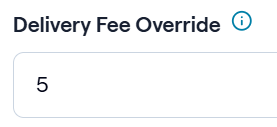
In this example, customers will all pay $5 for delivery, regardless of distance, and your business will cover any additional amount.
2. Custom delivery zones - configure a more precise delivery zone or zones to create tiered pricing
https://www.mobi2go.com/admin/store/[store_id]/settings/delivery-zones
Note that this means your business will pay the difference between this amount, and the delivery fee calculated by Uber Direct, for each order.
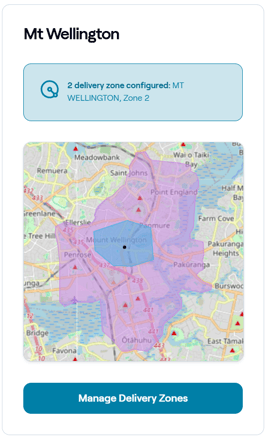
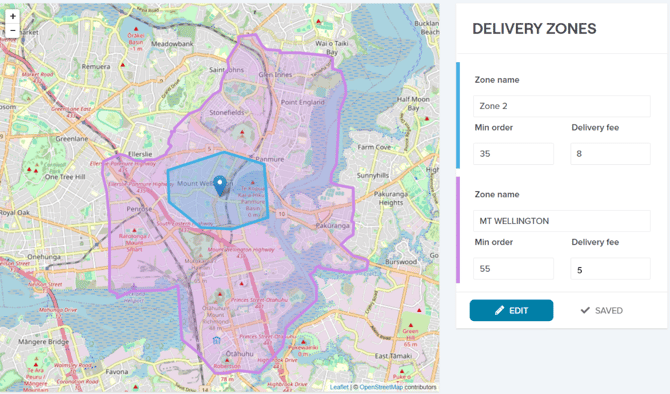
In this example, customers will pay $5 for delivery in the Mt Wellington zone, and $8 per delivery in Zone 2. The restaurant will still be charged the full amount for the delivery as calculated by Uber Direct.
Important: Uber Direct always calculates a fee. Your settings determine whether you pass that fee on to customers, override it, or subsidise it.
3) Delivery zones (service area)
If you would prefer to service a smaller area instead of using a simple maximum radius, you can configure Delivery Zones.
- Delivery zones help Uber Direct determine whether an address is serviceable.
- If you use zones, keep them tight and realistic.
If you need to configure delivery zones, you can access them here:
https://www.mobi2go.com/admin/store/[store_id]/settings/delivery-zones#/
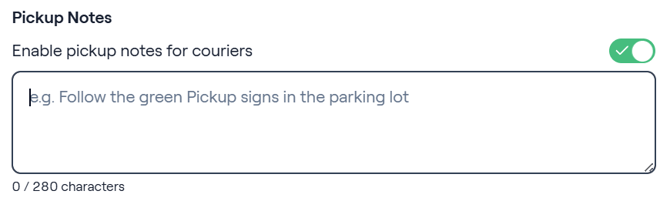
4) Driver actions - Pickup notes
If you need to provide the driver with additional instructions on how to find your store, or what to do at pickup, you can add some notes they will receive.
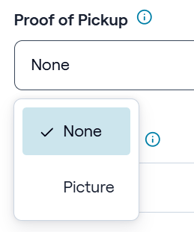
5) Driver actions - Proof of pickup
If set to "Picture", drivers will be required to take a photo of the order when they pick it up from your store. This may be helpful in the case of any dispute.
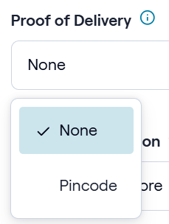
6) Driver actions - Proof of delivery
You can choose the level of drop-off verification you want, such as:
- No proof of delivery (fastest, simplest)
- PIN code verification (extra security)
When PIN code is enabled, Uber Direct will send the customer a 4-digit PIN in their Uber communications. To complete the dropoff, the driver must request the PIN code from the customer, and enter it in their Uber app to complete the delivery
7) Driver actions - Undeliverable action
Choose what should happen if the driver can’t reach the customer to complete the delivery.
Note that the available options depend on your proof-of-delivery settings. If you use PIN verification, Uber Direct requires the undeliverable action to be Return to store.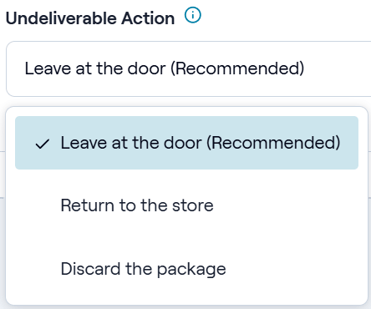
Troubleshooting & tips
Your store phone number must be correct, according to your region
If your phone number is not valid, the delivery order will fail and delivery will be automatically disabled. You will see an error up the top of your Delivery Settings screen. Update your phone number in the General Settings page: https://www.mobi2go.com/admin/store/[store_id]/settings/general-settings
Timezone must be correct
Make sure your store’s timezone is correctly set. If it’s wrong, Uber Direct may dispatch at unexpected times.
Tipping
If tipping is supported in your configuration, it is strongly recommended to enable it (tips can improve driver acceptance).
Alcohol deliveries
Availability varies by region and Uber Direct rules.
- If you sell alcohol, Uber Direct may require additional verification.
Need help?
If you’re stuck during setup or want help choosing the right settings for your delivery experience, contact your MOBI support via help@mobihq.com