
Manage your wait times in the MOBI app
You can update your store’s wait times directly in the MOBI app on your mobile or tablet. It’s a convenient way to set realistic expectations for customers throughout service.
You can also use the app to manage live orders, update stock availability, check your store status and access sales data.
Download and log in
- Download the MOBI app on your mobile or tablet: https://www.mobihq.com/business-operations/mobi-admin-app.
- Open the app and log in with your existing admin details.
- Select the 'More' tab and then 'Store Status'
Update your wait times
You can adjust your Prep time and, if you offer delivery, your Drive time to reflect how busy your store is and give customers an accurate estimate of when their order will be ready.
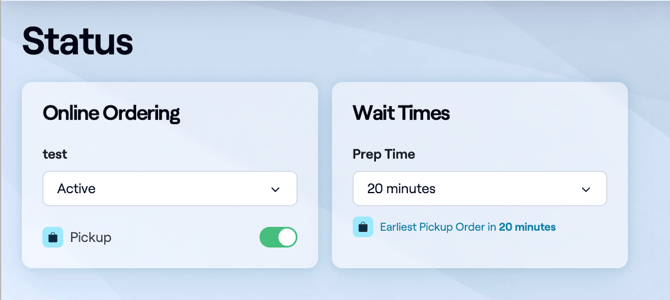
Understanding your wait times
MOBI uses two settings to calculate the wait times customers see:
- Prep time: The average time your kitchen takes to prepare an order.
- Drive time: The average time it takes to deliver an order from your store to a customer’s address.
Your wait times are calculated as follows:
- Pickup wait time = Prep time
- Delivery wait time = Prep time + Drive time
Pickup example
If your prep time is 15 minutes and a customer orders at 1:00 pm, the earliest collection time is 1:15 pm.
Delivery example
If your prep time is 15 minutes, your drive time is 20 minutes and a customer orders at 1:00 pm, the earliest delivery time is 1:35 pm.
Regular peak periods
If your store regularly receives more orders than it can prepare during peak periods, use Order Limits to control how many orders can be accepted in a single time slot.
Products or large orders that need more time
Use Dynamic Menu tags when certain products take longer to prepare or larger orders, such as catering orders, need additional preparation time.
FAQ
Q: Why is the time shown on my website more than 30 minutes different from my wait time?
A: A difference of 30 minutes or more may be related to your store’s timezone settings.
To check:
- Open Store Overview and select Settings.
- On the General Settings page, scroll to Regional settings.
- Check that your store’s Timezone is correct and update it if needed.
If this doesn’t resolve the difference, contact our support team so we can investigate.
Want to learn more or have feedback for us? Say hello!
💬 CHAT: Chat with us online! You can find our ChatBox, 'Dave' in the bottom right-hand corner of our website.
📞 PHONE:
New Zealand: +64 4 831 9400
Australia: +61 3 7037 0866
North America: +1 647 692 2317
🗒️ Form Submission: https://help.mobihq.com/kb-tickets/new
✉️ EMAIL: help@mobihq.com