MOBI makes it easy to get started with Uber Direct. In just a few steps, you can review your pricing and terms, create your account, and enable delivery on your MOBI store - no separate setup with Uber Direct required.
Before you start
- This article is for you if your store is based in New Zealand, Australia, United States, and Canada. If you are based in another country, we can still support your integration with Uber Direct, but the process is different. Please reach out to your MOBI representative, or help@mobihq.com for more information.
- You’ll need admin access to your store’s MOBI Admin.
- Use an email address you can access during setup — Uber Direct will send an account invite to this email.
Who this setup is for
This setup is designed for stores with a decentralised billing arrangement, meaning each store pay Uber Direct directly for their own deliverie).
If headoffice will be paying Uber Direct for deliveries for all stores (centralised), please contact help@mobihq.com for help with implementation.
Part 1 below shows you how to enable Uber Direct & delivery. Parts 2 & 3 cover how to understand, control and optimise your delivery here: https://help.mobihq.com/understand-and-optimise-delivery-via-uber-direct
Part 1: Connect Uber Direct to your store
Step 1: Open the store Delivery page
From your store’s Admin, go to the Delivery page:
https://www.mobi2go.com/admin/store/[store_id]/delivery
NOTE: If you are already using delivery with a different provider and you can't see this page, go directly to the Uber Direct create-account page:
https://www.mobi2go.com/admin/store/[store_id]/settings/uber-direct-create-account
Step 2: Create your Uber Direct account
- Select Get started (or Create account)
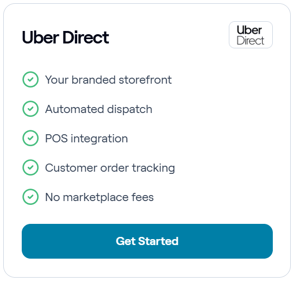
- Review the prices and conditions for your account with Uber Direct.
NOTE: these are the prices that you will be charged by Uber Direct for each delivery. These are also what your customer will pay for their order, unless you choose to implement a delivery fee override. - Review the details shown and confirm they are correct. The email is important as Uber Direct will send you a link to confirm billing details.
- Submit the form to create your Uber Direct account
Step 3: Check your email for the Uber Direct invite
Uber Direct will send an email invite to the address you confirmed.
- Open the invite
- Log in / activate your Uber Direct portal access
Step 4: Add billing details in the Uber Direct portal
In the Uber Direct portal, add your billing details.
- Credit card billing - recommended as it's the fastest way to get live.
- Invoice billing - will take longer to process given Uber Direct will need to do some checks. This could take several days.
Step 5: Confirm your delivery setup in MOBI
Once your Uber Direct account is created and billing details are added:
- Return to the MOBI Admin
- Check the box to say Billing has been completed
- Congratulations, your Uber Direct account is live!
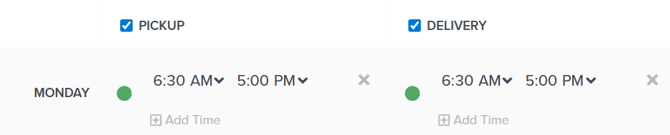
To start taking delivery orders, ensure Delivery Hours are enabled on your Store Hours page,
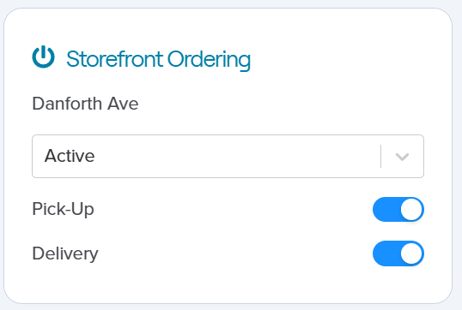
And Delivery is toggled ON, on your Store Overview.
To learn more about how delivery by Uber Direct works (distances, prices etc), as well as the additional settings you can make use of, please see the article below covering:
Part 2: Understand the default delivery behaviour
Part 3: Edit your Uber Direct delivery settings
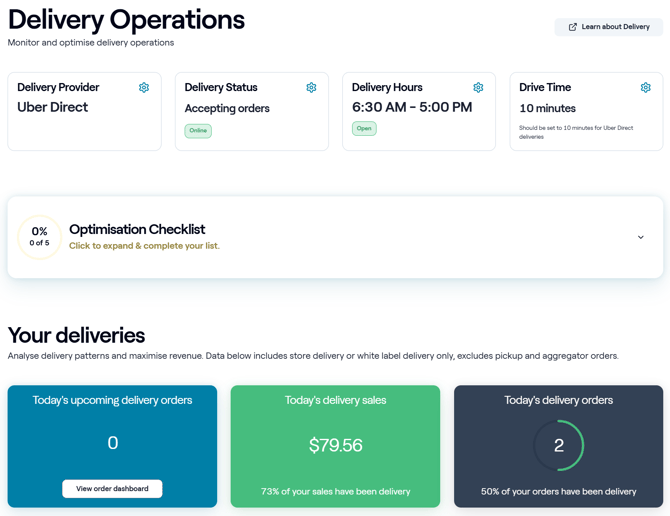
Visit the Delivery Operations page to view your current delivery status.