
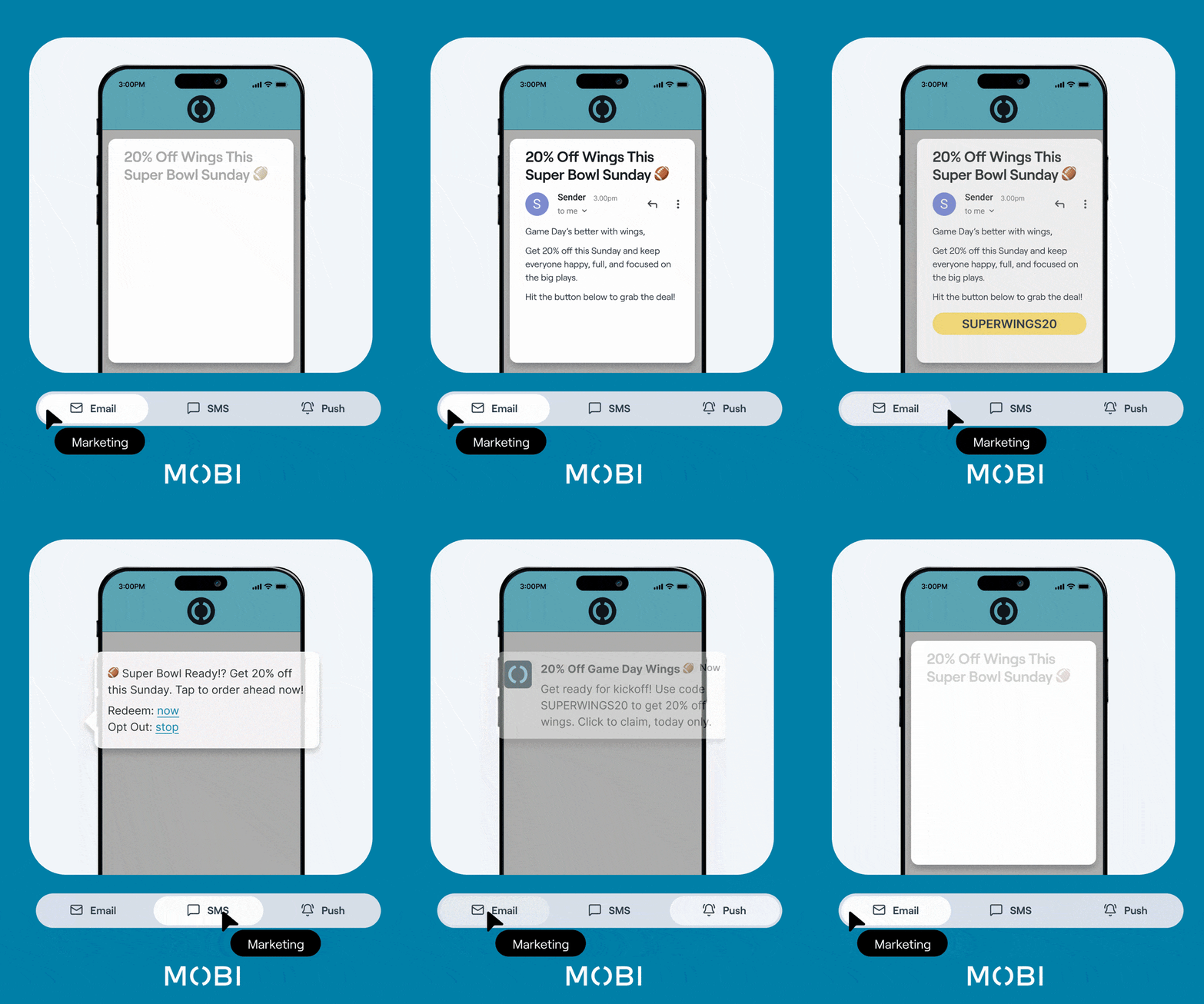
What It Does
-
Schedules messages to appear/send during specific dates/times.
-
Targets audiences by location and platform (Web, App, Kiosk)* and channel opt‑ins.
-
Attaches an Action so customers can instantly do something from the message.
-
Channels supported: Email, SMS, Push Notifications.
Video Guide
Supported Actions (in Message Scheduler)
-
Add Voucher — Applies a selected voucher/promo code.
-
UI shows: Voucher: Please Select → Choose from available vouchers.
-
-
View Product — Opens a selected product page.
-
UI shows: Product: Please Select → selection by product name (not ID).
-
-
View Category — Opens a selected menu category.
-
UI shows: Category: Please Select → selection by category name (not ID).
-
-
View Loyalty — Routes to Loyalty (sign‑in/join may be required).
Not supported in Message Scheduler
-
Open Link (Promo Banners only)
-
App Download (Receipt Customiser only)
Message Channels
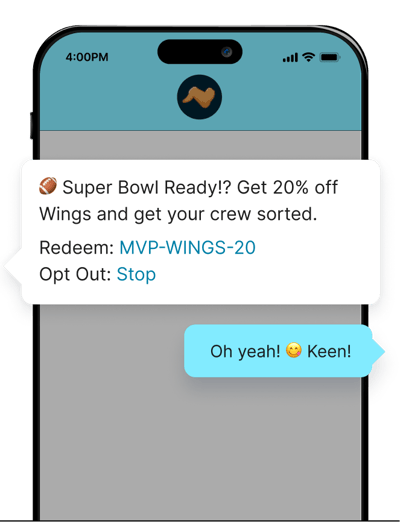
SMS Marketing
-
Lower opt‑in, typically higher engagement (CTR/view rate).
-
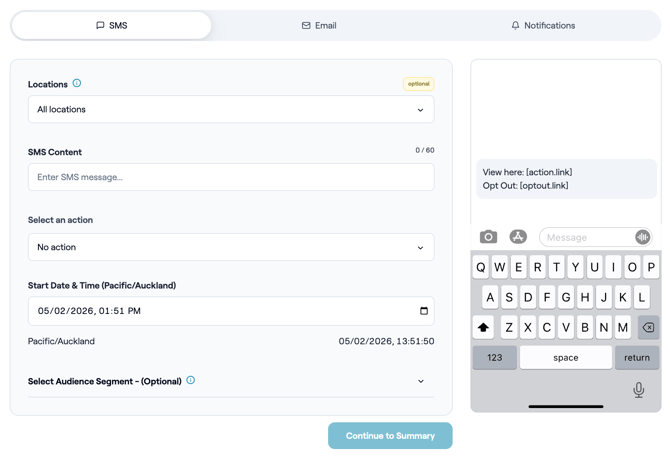
Template is simple and includes a mandatory opt‑out message and action link; character limit of 60 apply.
- Admin setup:
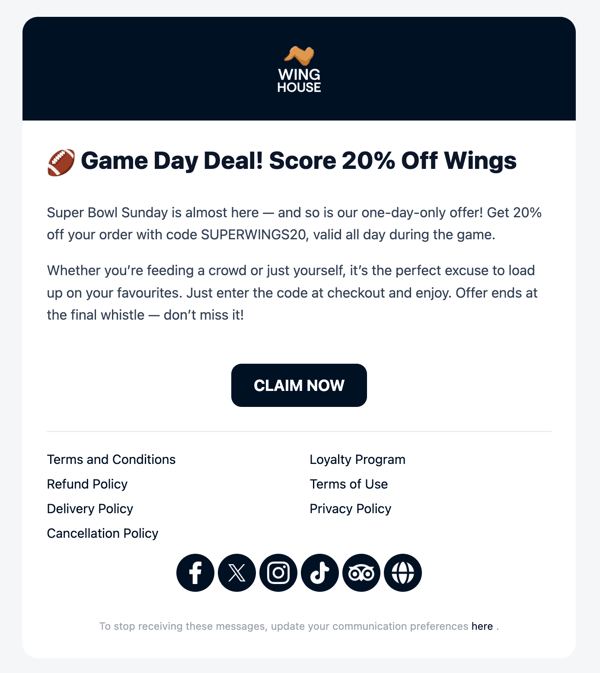
Email Direct Marketing
-
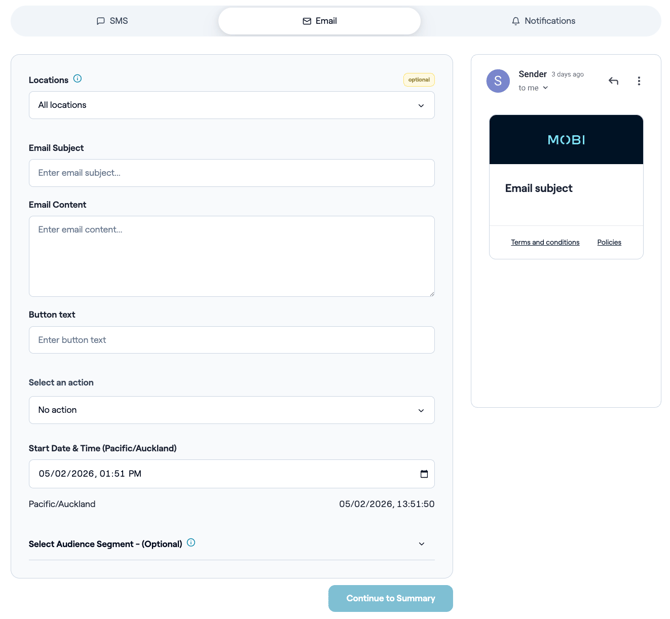
Supports Brand Styling: brand colours and logo, these are all pulled directly from your storefront.
-
Formatting is currently fixed
-
Suitable for newsletters, promotions, and transactional‑style updates.
- Admin setup:
Push Notifications
-
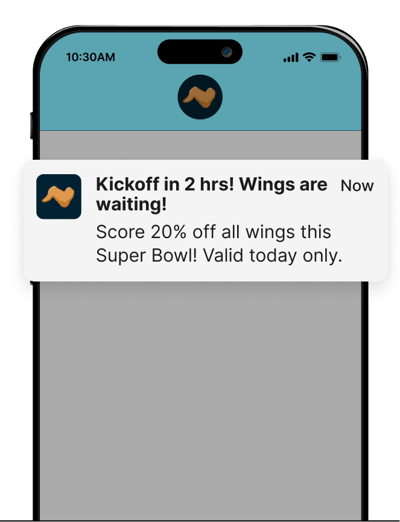
Available for customers using branded native apps (push‑capable version required).
-
Immediate engagement; great for reactivation or time‑sensitive campaigns.
-
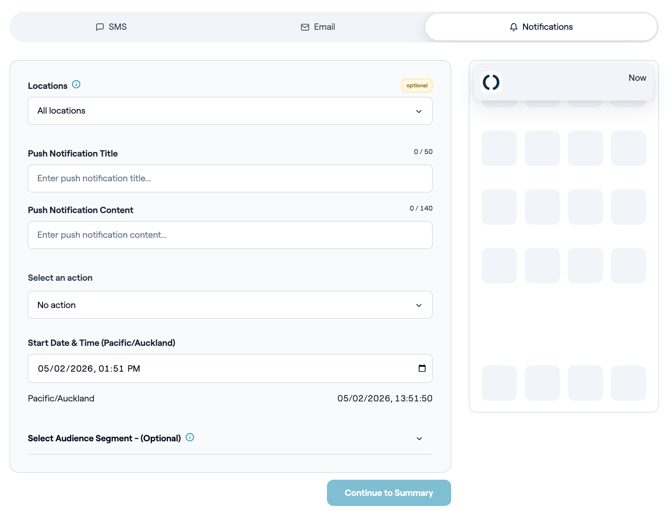
Includes App Icon, Title, and Message. Actions are not trackable by analytics (no click‑through tracking from push).
-
Eligibility window: When sending Push, or when using Location filters, or when selecting any RFM segment subset, only customers who have ordered in the last 180 days are eligible.
- Admin setup:
Guest Opt‑In (By Channel)
-
SMS & Email
-
Customers opt in at sign‑up via the storefront.
-
Users opt in to both channels together at sign‑up, but can opt out individually later.
-
The Customer Prompt model re‑prompts non‑opted‑in users periodically.
-
-
Push Notifications
-
Opt‑in occurs after downloading the native app and signing up/signing in.
-
Device‑level permissions govern push; if the user opts out, the device blocks notifications.
-
Requires the brand’s MOBI app on a recent version that supports push.
-
Creating a Scheduled Message (Steps)
- Choose Channel → Email, SMS or Push
- Targeting → Choose location(s) note customers who have ordered from that location int he past 180 days will be sent this message.
- Create Message → Add headline/copy (keep it short and action‑oriented).
-
Attach an Action → Pick one of the supported Actions and complete the required selection.
-
Schedule → Set sending time, note this uses your local timezone
- Preview Message → Preview how your message will look to customers in the panel to the right of the inputs.
-
Continue to Summary → Check the selections you have made then Continue to Launch
Best Practices
-
One goal per message — Let the Action do the work.
-
Match copy to action:
Promo → Add Voucher;
Discovery → View Category;
Hero item → View Product;
Loyalty push → View Loyalty.
-
Target tightly — Limit to relevant stores or segments.
-
Respect availability — Ensure selected product/category is published and available at the target location/time.
Analytics & Tracking
-
Campaign Analytics
-
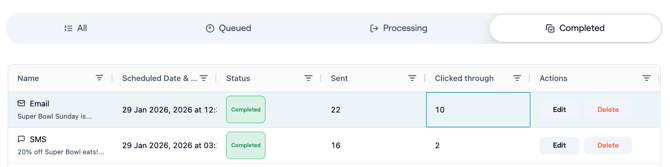
Click‑Through Tracking: Available for SMS and Email via the MOBI redirect service.
-
Each click on a tracked link counts as 1 click‑through.
-
CTR = Clicks ÷ Messages Sent × 100%.
-
-
-
Expected Reach
-
Shown as an estimate, based on segment size and channel opt‑ins.
-
Note: Push actions are not click‑through trackable at this time.
Location Filtering
-
A customer is associated with a location if they have ever ordered from that location.
-
Location filters can be combined with RFM groups to narrow targeting.
-
180‑day purchase window applies when location filters are used (see Eligibility window above).
QA Checklist
-
✅ Correct locations/segment selected
-
✅ Message appears/sends only within scheduled window(s)
-
✅ Action configured correctly (voucher/product/category names are valid and published)
-
✅ Voucher eligibility rules align with location and day of the week
-
✅ SMS length stays within limits; Push permissions confirmed
Troubleshooting
-
Message not showing/sending → Check dates/times, channel opt‑ins, and location/platform targeting.
-
Action does nothing → Ensure a valid selection (voucher/product/category) is set and is available in the target context.
-
Voucher not applying → Verify eligibility and that qualifying items are in cart.
-
Wrong destination → Confirm the product/category name matches what’s published for the targeted location.
Examples
-
Lunch deal (SMS) — 11:00–14:00 weekdays, pickup locations → Add Voucher ("LUNCH5").
-
New range (Email) — All week, all platforms → View Category ("Summer Specials").
-
Hero item push (Push) — Weekends, app users → View Product ("Smoky BBQ Burger").
-
Loyalty reminder (Email/SMS) — Evenings → View Loyalty (encourage sign‑in).
Onboarding Requirements
-
Admin access to Message Scheduler.
-
Content assets (copy, campaign names) and any voucher codes you plan to reference.
-
Published products/categories for product/category actions.
-
Branded app (for Push) with push‑capable version.
RFM Customer Segmentation (FYI — not the core focus right now)
-
Optional RFM segmentation (Recency, Frequency, Monetary) is available to reach specific subgroups.
-
Scoring: Customers are scored weekly on R, F, M and split into thirds (1 = lowest, 3 = highest). Standard groups include Champions, Loyal, Recent, Needs Attention, At Risk, Inactive.
-
Eligibility: When RFM segmentation is applied — or when using Push or Location filters — only customers who have ordered in the last 180 days are eligible.
As this area evolves, expect enhancements to dashboards, delivered/read metrics, and multi‑channel orchestration.
Summary
Message Scheduler delivers the right Email/SMS/Push at the right time/place with a storefront Action to convert attention into orders or sign‑ups.
Change Log & Ownership
-
Owner: Product Marketing / Support
-
Last Reviewed: 05/02/2026
-
Related: Actions | Promo Banners | Receipt Customiser | Loyalty | Vouchers